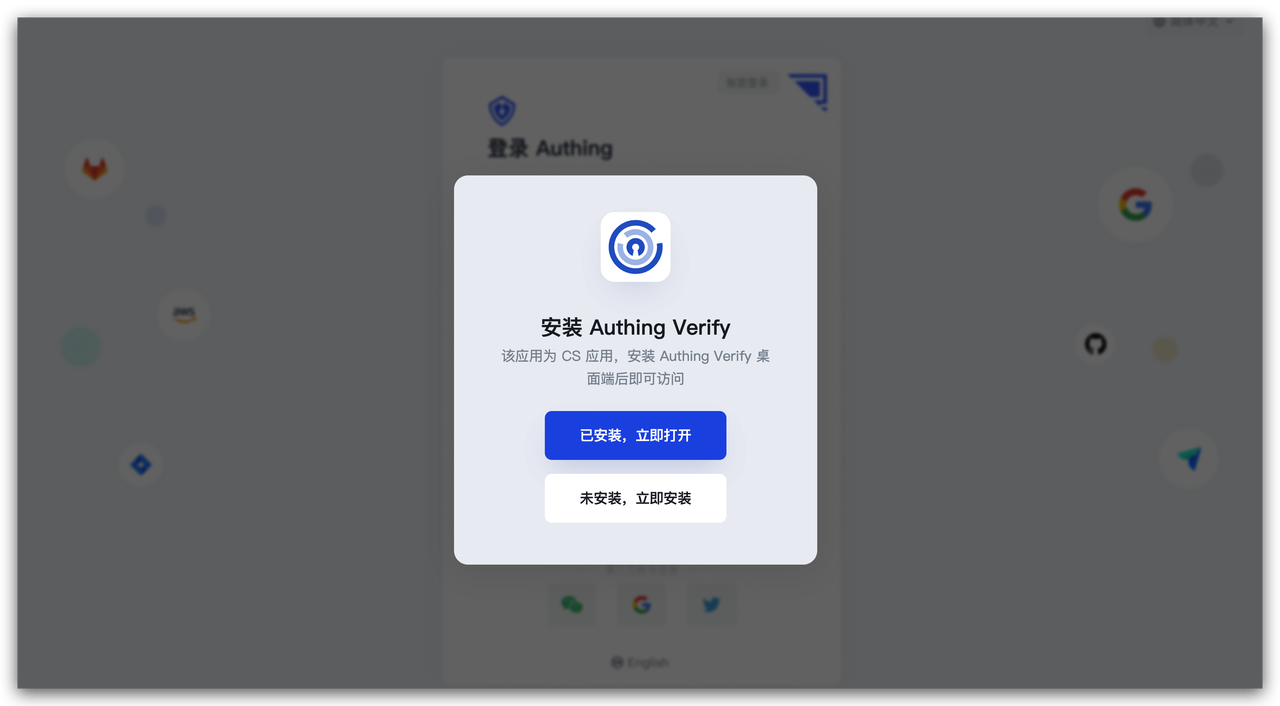
ASAD form filling access tutorial
What is ASAD?
GenAuth Secure Authentication for Desktop is a feature developed by GenAuth that provides single sign-on (SSO) for external desktop applications that do not support standard authentication protocols (OAuth2.0, OIDC, SAML, CAS).
Administrators can assign application accounts and passwords to users. GenAuth stores the account and password in a database. When a user accesses the login interface of an application to which an account and password are assigned, GenAuth will automatically fill in the account and password and log in. End users only need to log in to GenAuth to directly access the assigned application.
How to use
Custom ASAD application
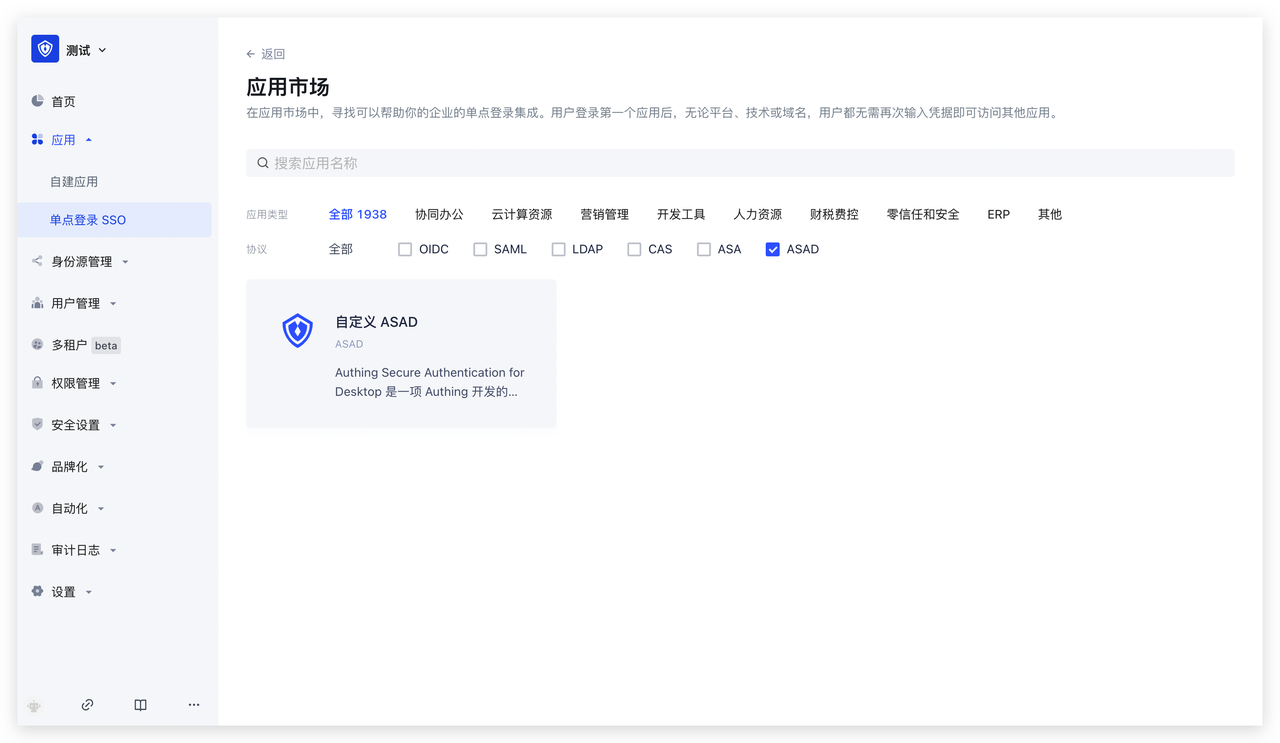
Find an application that supports ASAD in the GenAuth application market. Let's take "DingTalk" as an example for demonstration.
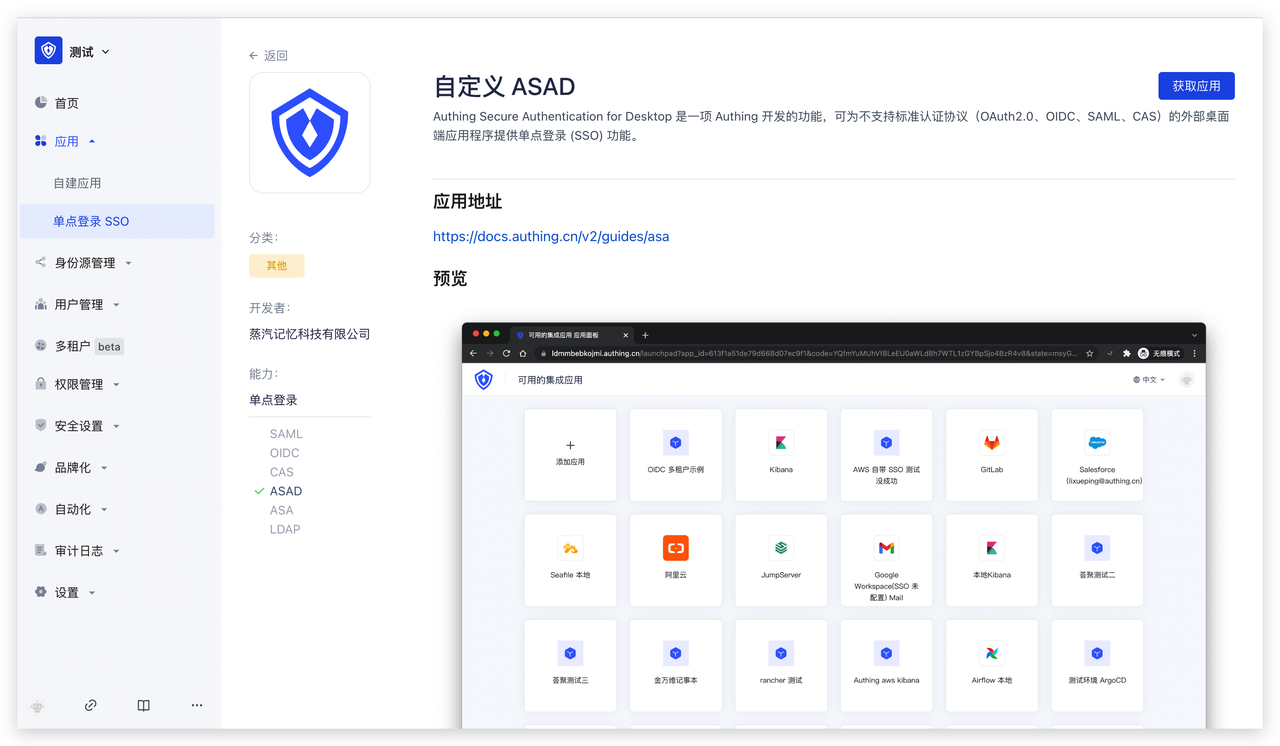
Get the application
Click to enter the details, click "Get the application" in the upper right corner
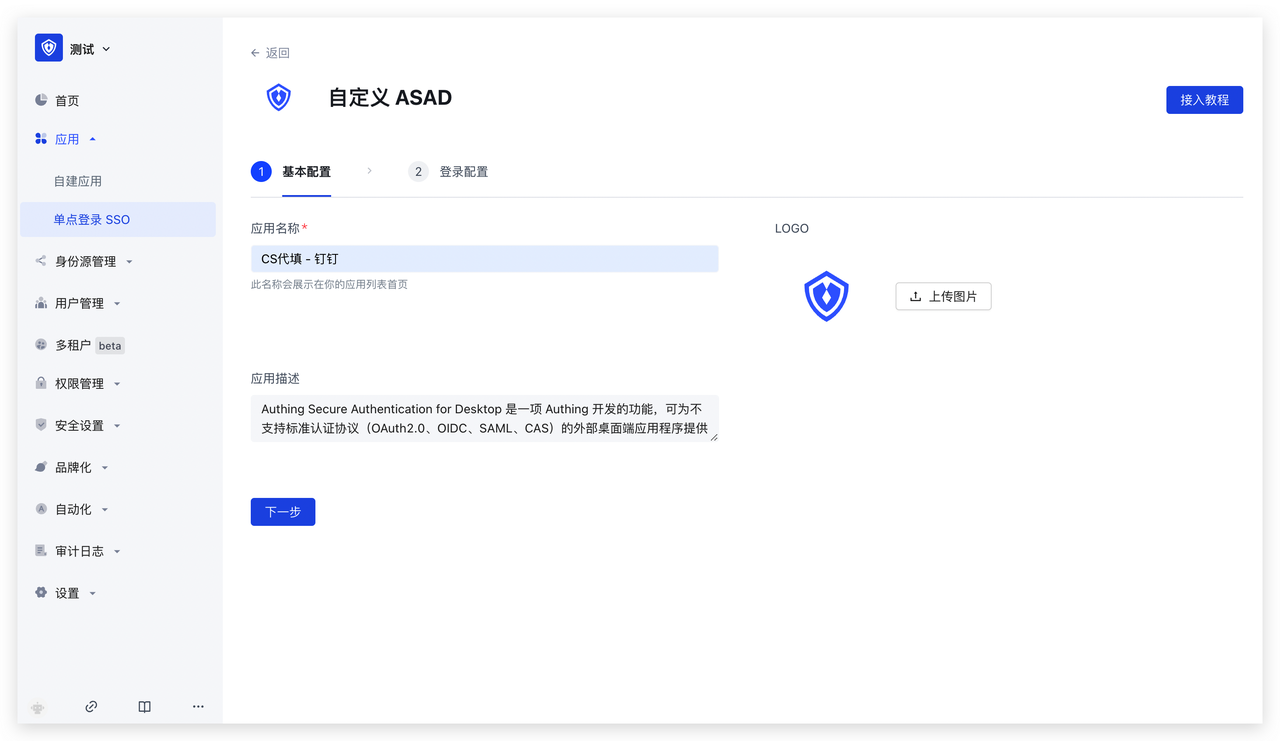
Fill in the basic configuration
Fill in the application name and click "Next"
Fill in the login configuration
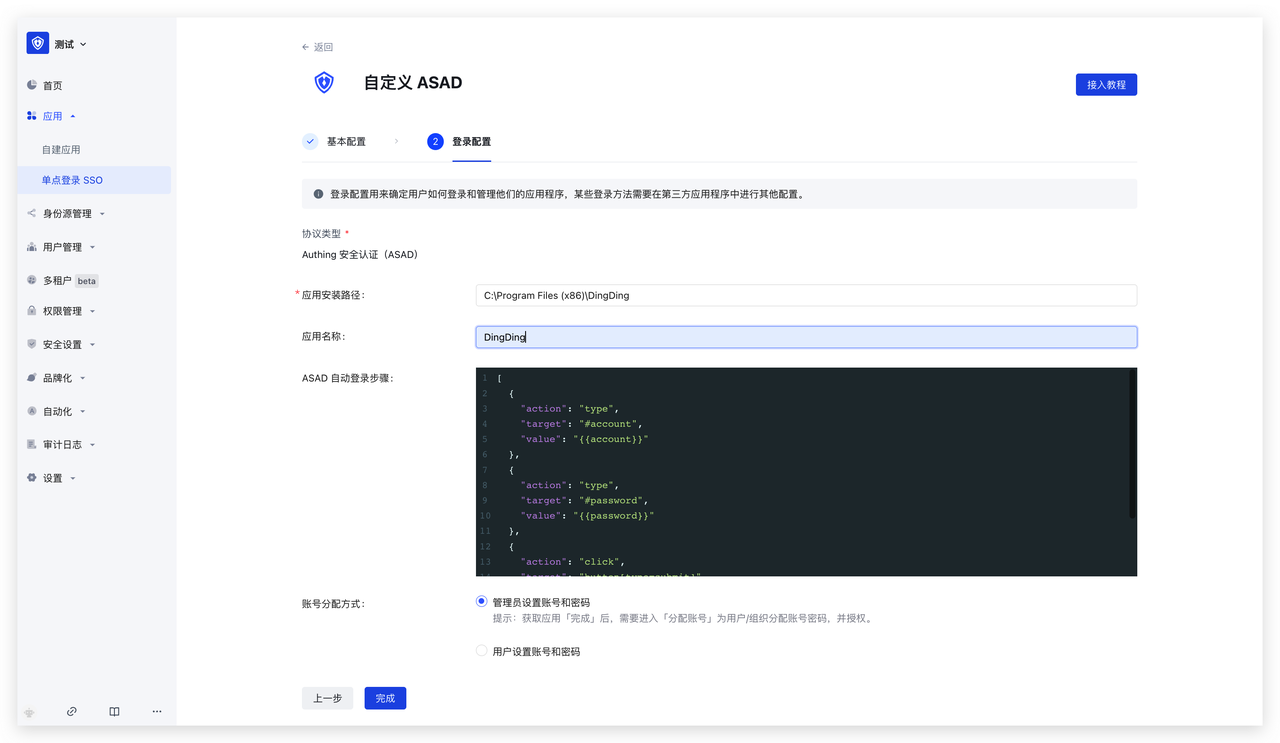 Fill in the following configuration information, then click "Finish"
- First enter the application installation path, such as the installation path of "DingDing": C:\Program Files (x86)\DingDing
- Fill in the application name: to facilitate faster positioning of the current application
- Then fill in the ASAD automatic login step, the automatic login step must be a legal JSON The value is a string and is an array of objects. The ASAD plug-in will perform object operations in sequence based on this array. All keys of the objects in the array are as follows:
- action: indicates the operation type of the current step, all operation types are
- type: input, such as input account
- click: click, such as clicking the login button
- target: indicates the operation target of the current step, the value is a string, accepts all dom element selectors that querySelector (opens new window) can accept, such as #password
- value: indicates the operation value of the current step
- type: input, such as input account
- When used in the type operation, the value is a string, you can use
{{account}}to indicate the bound account,{{password}}to indicate the bound password
- action: indicates the operation type of the current step, all operation types are
- Account allocation method: supports administrators to set accounts and passwords; users to set accounts and passwords
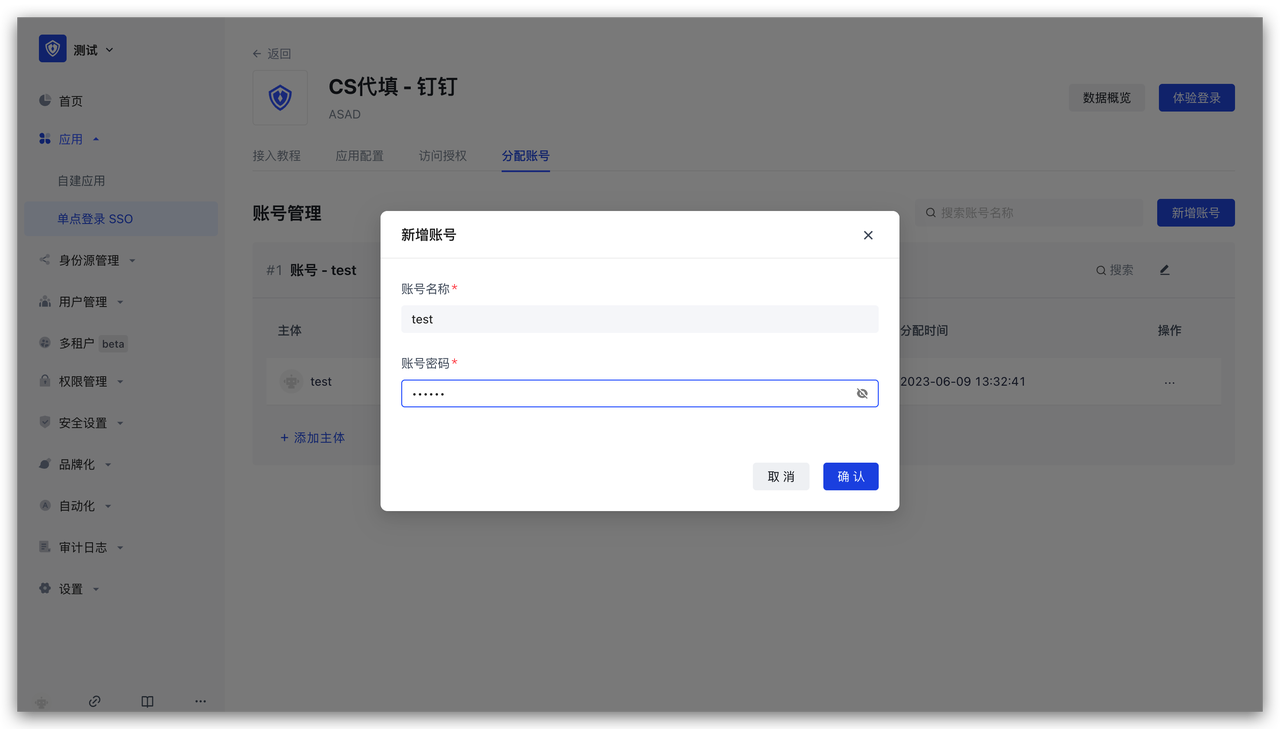
Account allocation
Take the administrator setting account and password as an example, on the account allocation page, assign application accounts to users
Access authorization
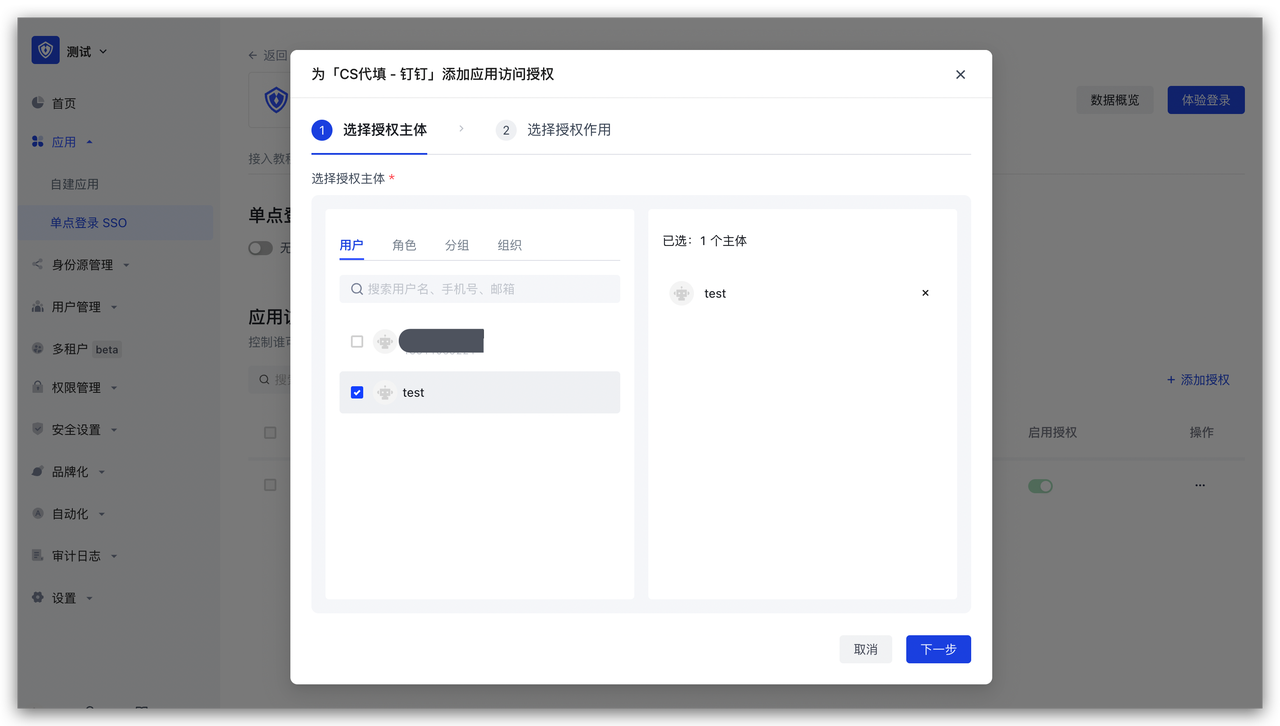
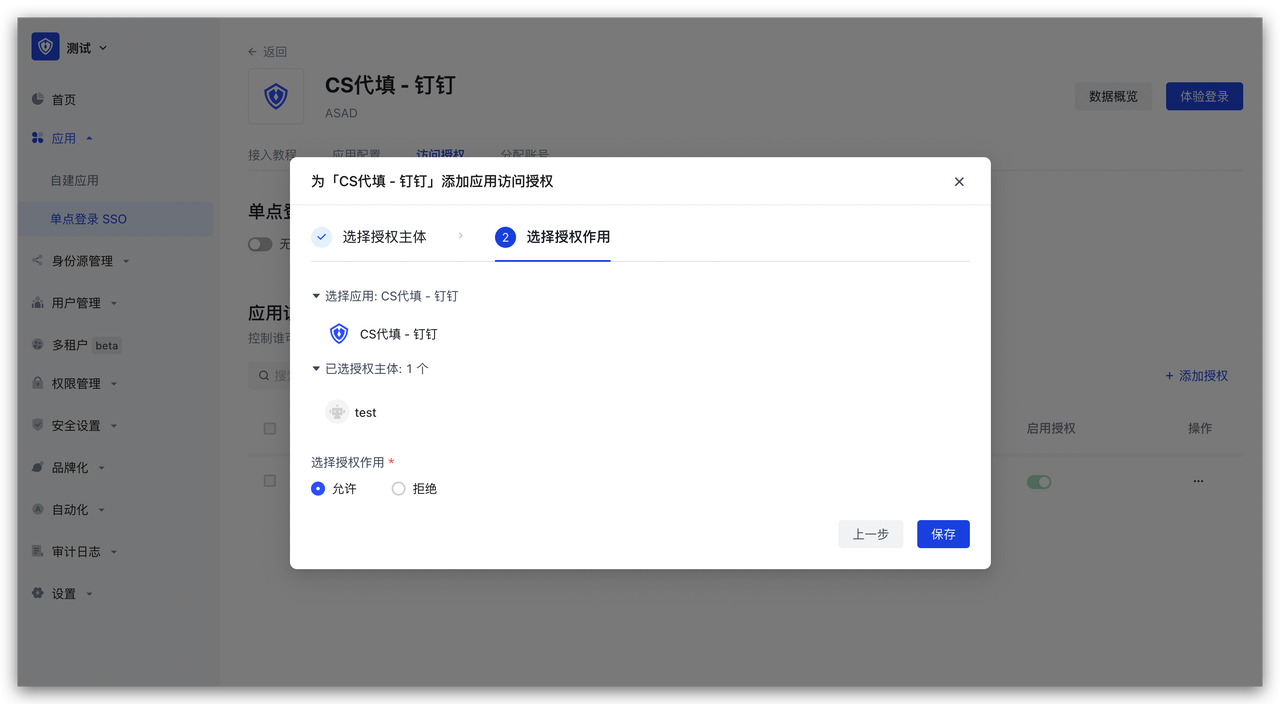
On the access authorization page, add application access authorization
Experience login
After completion, you can immediately experience login