
Gitee Mobile
Scenario Introduction
Overview
Gitee social login allows users to log in to third-party applications or websites securely using Gitee as the identity source. Configure and enable Gitee social login in GenAuth to quickly obtain Gitee's basic open information and help users log in without passwords.
Application scenarios
Mobile
Preview image for terminal users:
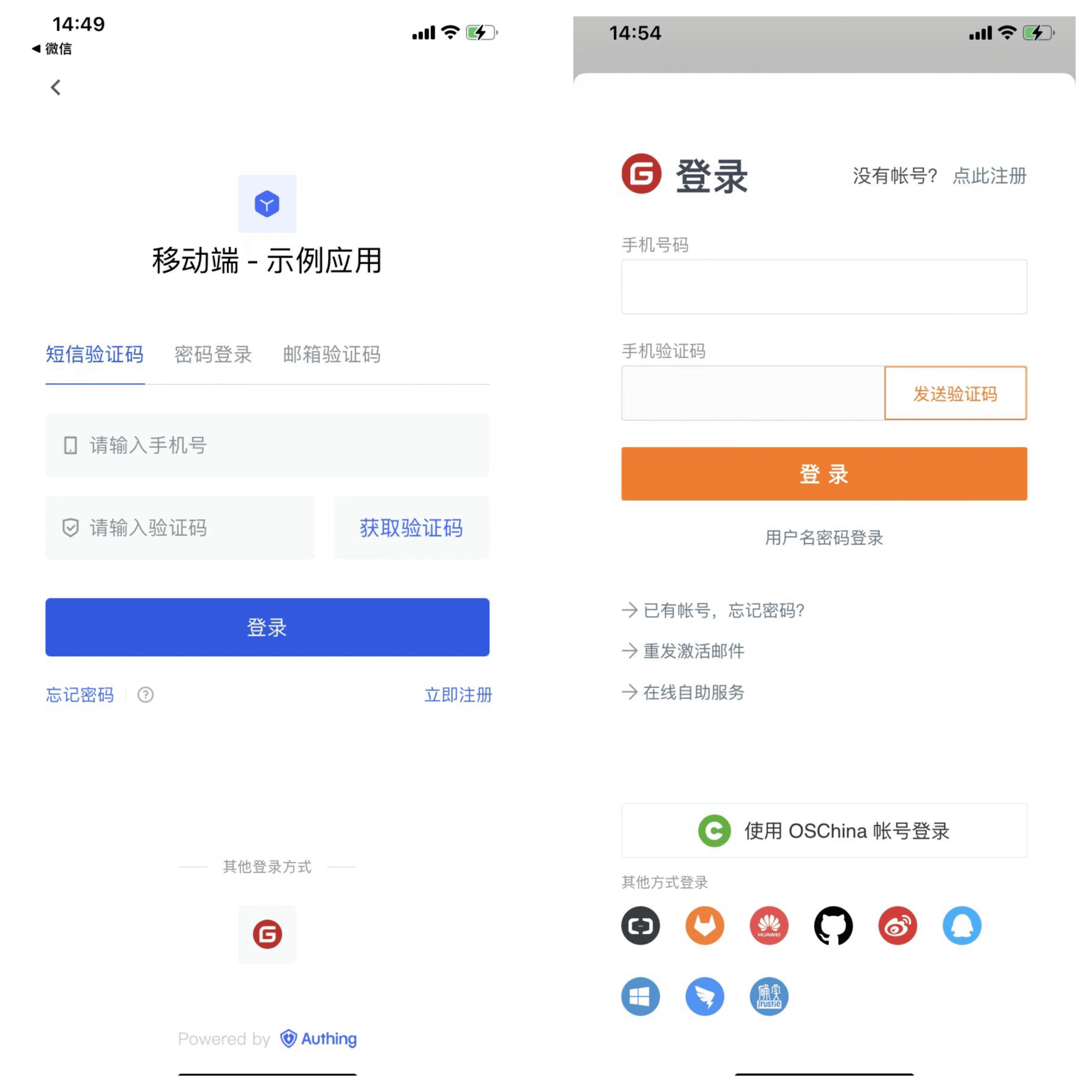
Notes
- If you don't have a Gitee account, please go to gitee.com to register an account
- If you haven't opened a GenAuth console account, please go to GenAuth console to register a developer account
Step 1: Create an OAuth application in Gitee
Enter Gitee's application management page and click "Create application": 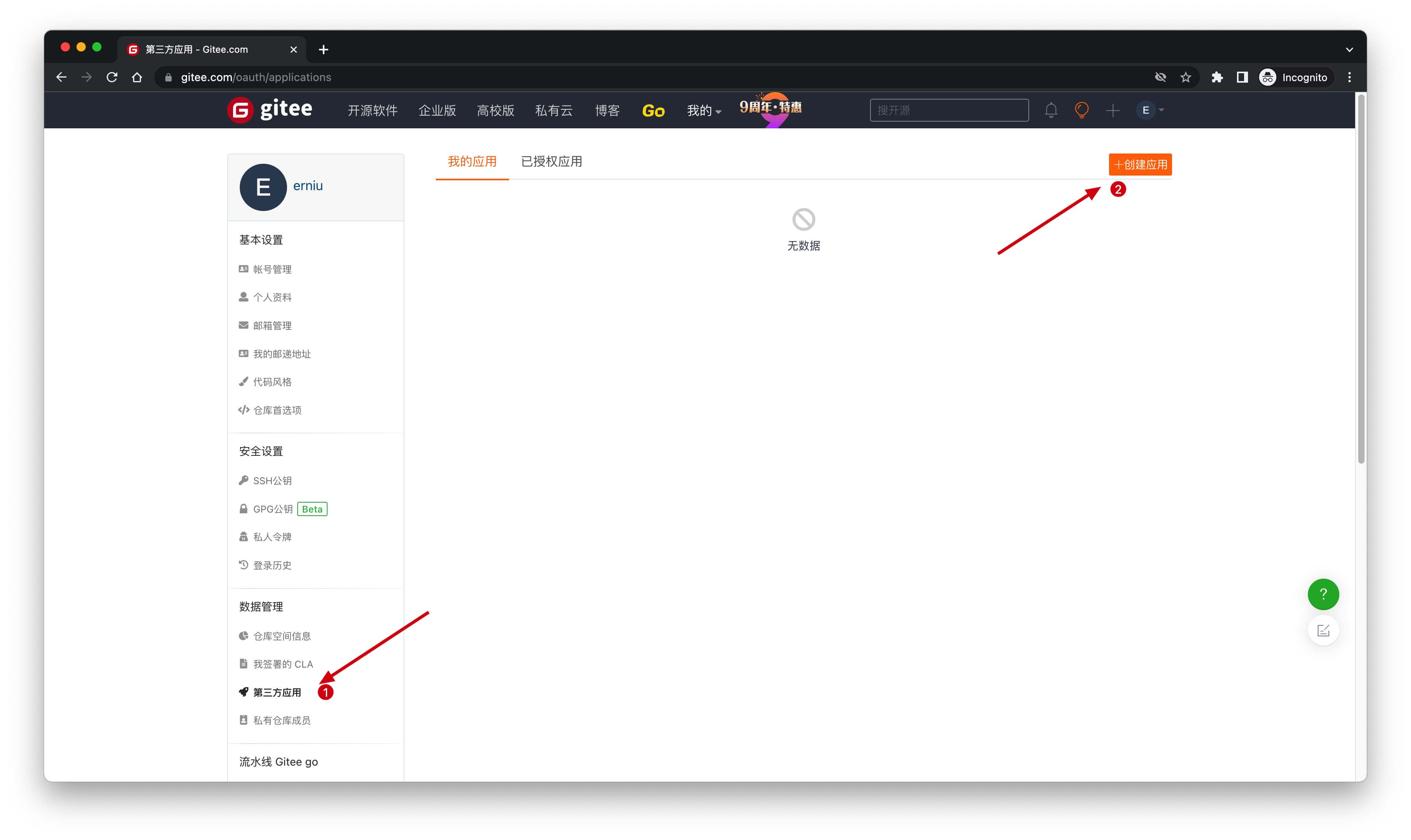
On the Create application page, configure the following information:
- Application callback address: Fill in
https://core.genauth.ai/connection/social/{Unique ID}/{User Pool ID}/callback. You need to replace{Unique ID}with theUnique IDfilled in the identity source you are creating in GenAuth, and replace{User Pool ID}with your User Pool ID
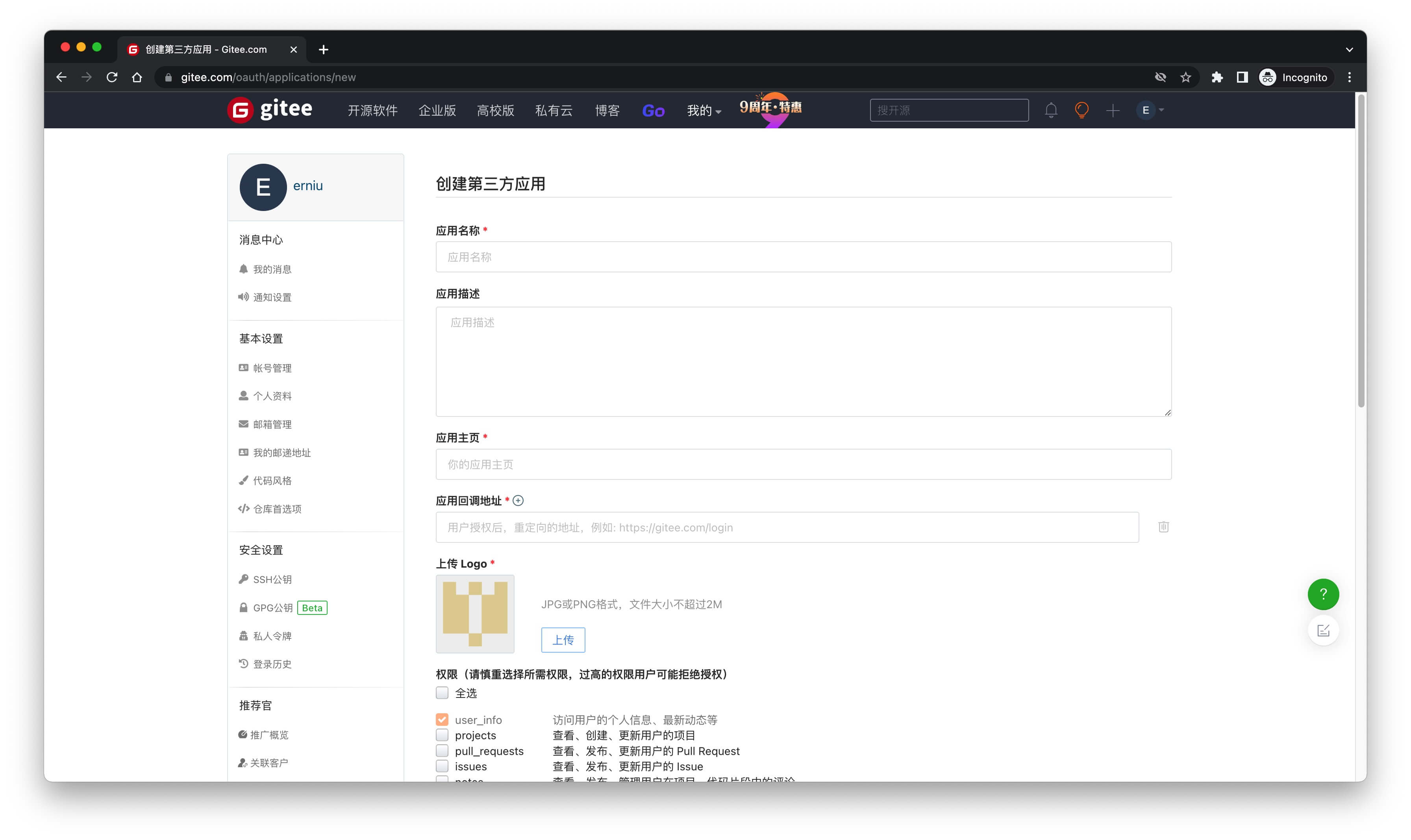
Finally, click "Create Application". After the creation is completed, you need to record the Client ID and Client Secret, which will be used in the next step. 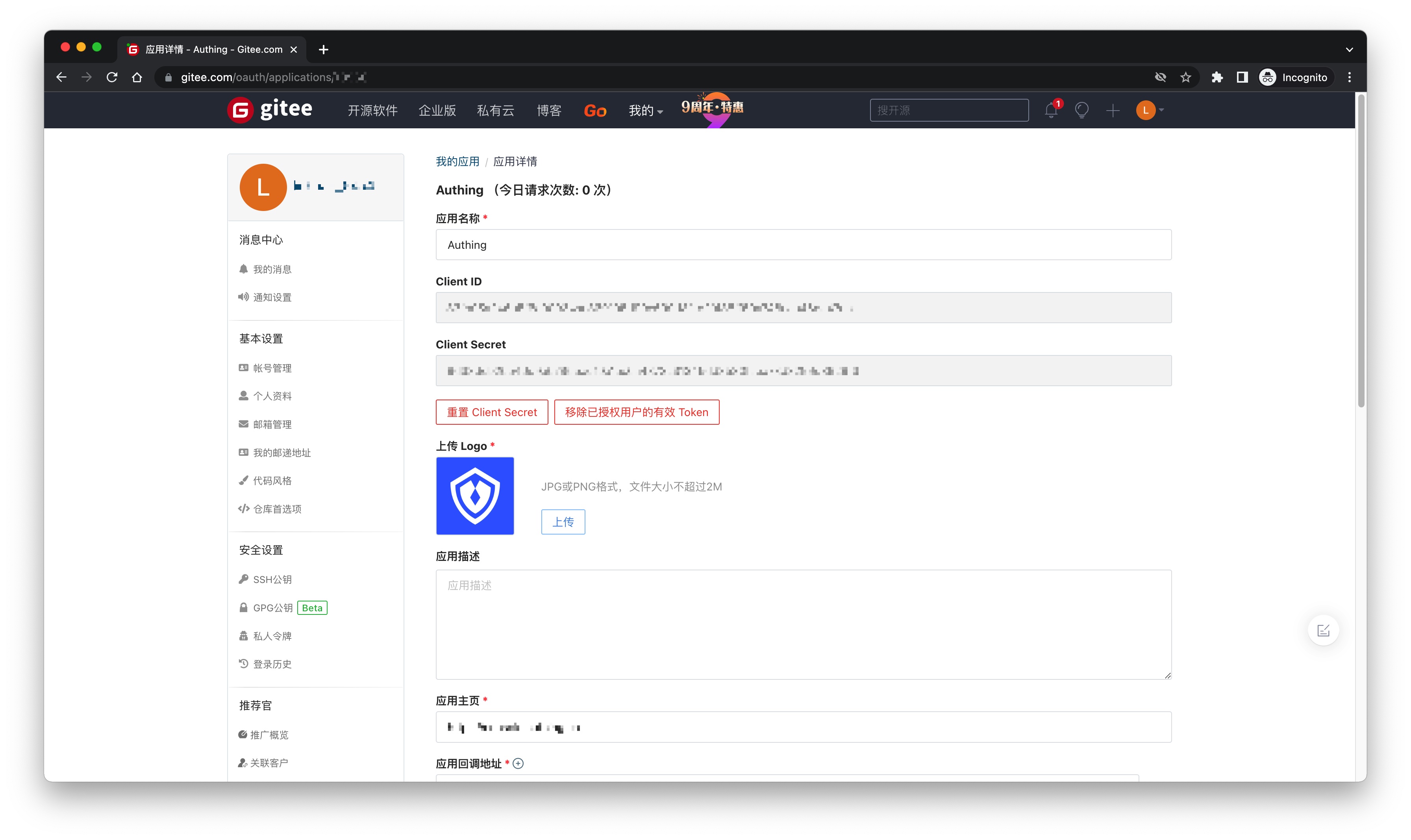
Step 2: Configure Gitee application configuration in the GenAuth console
2.1 On the "Social Identity Source" page of the GenAuth console, click the "Create Social Identity Source" button to enter the "Select Social Identity Source" page.

2.2 On the "Select Social Identity Source" page, click the "Gitee"-"Gitee Mobile" card. 
2.3 On the "Gitee Mobile" configuration page, fill in the relevant field information. 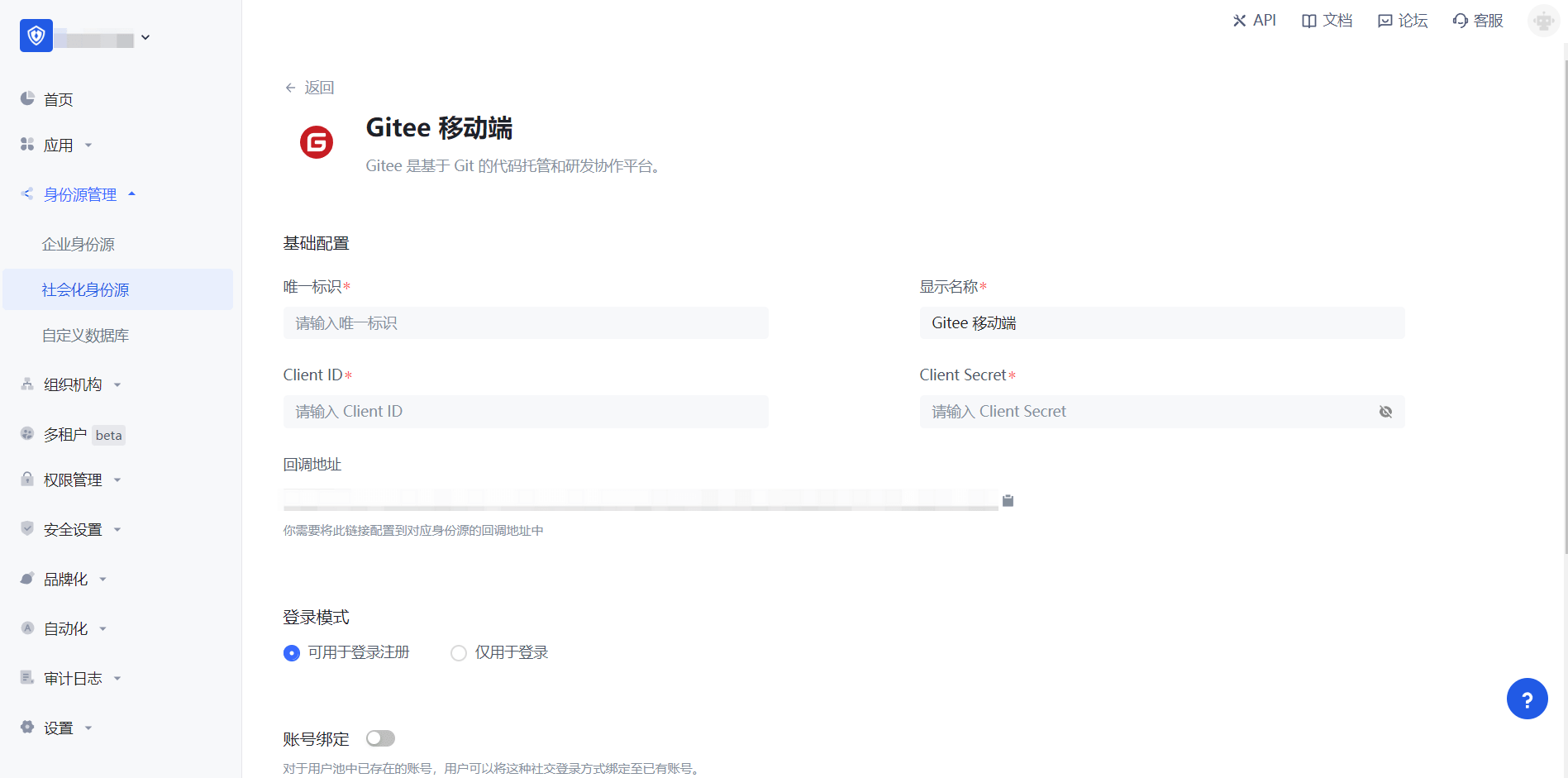
| Field | Description |
|---|---|
| Unique ID | a. The unique ID consists of lowercase letters, numbers, and -, and its length is less than 32 bits. b. This is the unique ID of this connection and cannot be modified after setting. |
| Display Name | This name will be displayed on the button of the terminal user's login interface. |
| Client ID | The Gitee application ID obtained in the previous step. |
| Client Secret | The Gitee application Secret obtained in the previous step. |
| Login Mode | After turning on "Login Only Mode", you can only log in to existing accounts and cannot create new accounts. Please choose carefully. |
| Account Identity Association | When "Account Identity Association" is not turned on, a new user is created by default when a user logs in through an identity source. After turning on "Account Identity Association", users can be allowed to log in directly to existing accounts through "Field Matching" or "Query Binding". |
2.4 After the configuration is completed, click the "Create" or "Save" button to complete the creation.
Step 3: Development Access
Recommended development access method: SDK
Advantages and disadvantages: Simple operation and maintenance, which is responsible for operation and maintenance by GenAuth. Each user pool has an independent secondary domain name; if you need to embed it in your application, you need to log in using the pop-up mode, that is: after clicking the login button, a window will pop up with the content of the login page hosted by GenAuth, or redirect the browser to the login page hosted by GenAuth.
Detailed access method:
3.1 Create an application in the GenAuth console. For details, see: How to create an application in GenAuth
3.2 On the created "Gitee Mobile" identity source connection details page, open and associate an application created in the GenAuth console
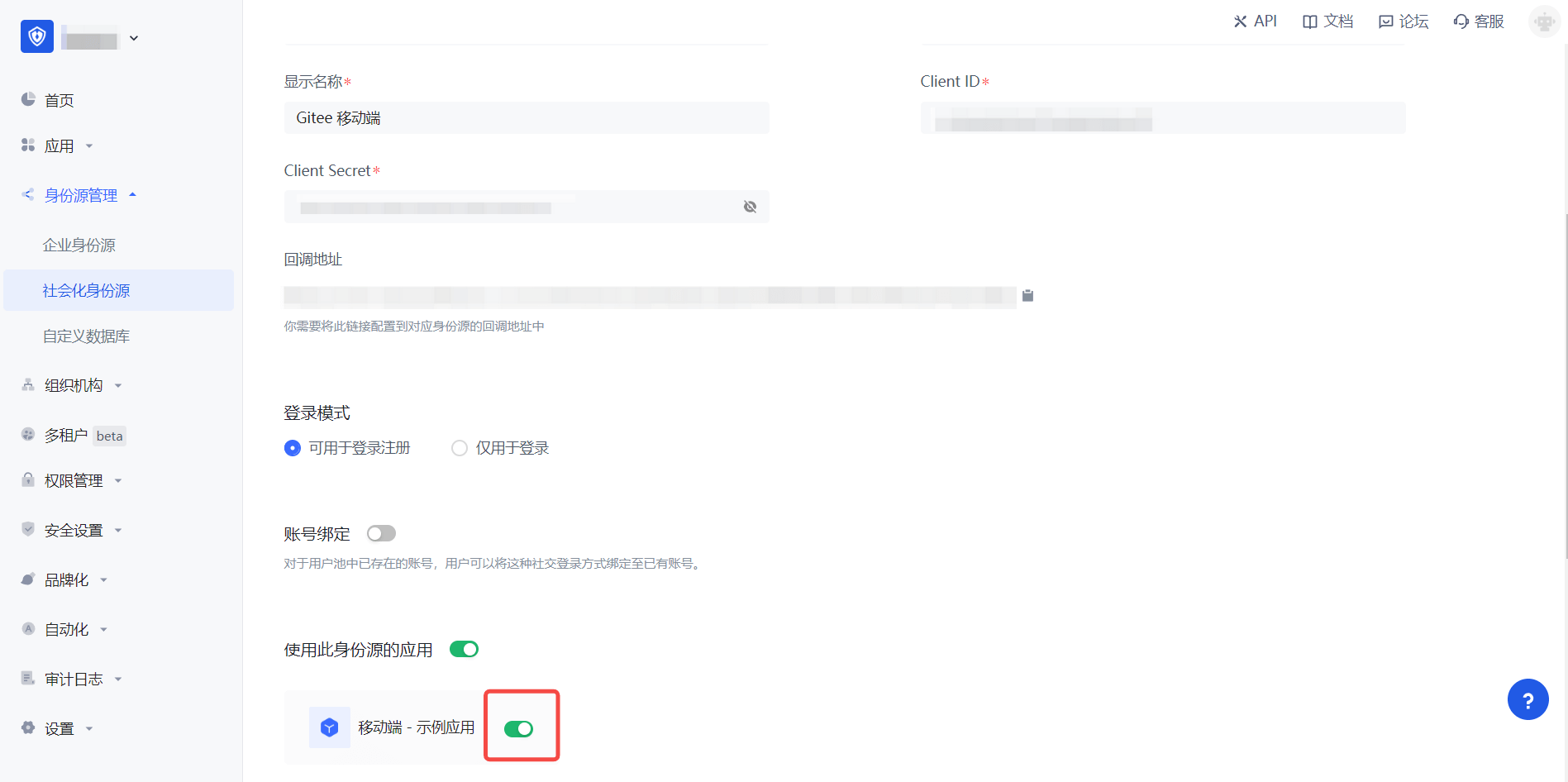
3.3 Experience Gitee third-party login on the login page (as shown in the [end user preview](#end user preview)).