Twitter
Scenario Introduction
- Overview Twitter social login allows users to log in to third-party applications or websites securely using Twitter as the identity source. Configure and enable Twitter social login in GenAuth to quickly obtain basic open information about Twitter and help users log in without a password.
- Application scenario: PC website
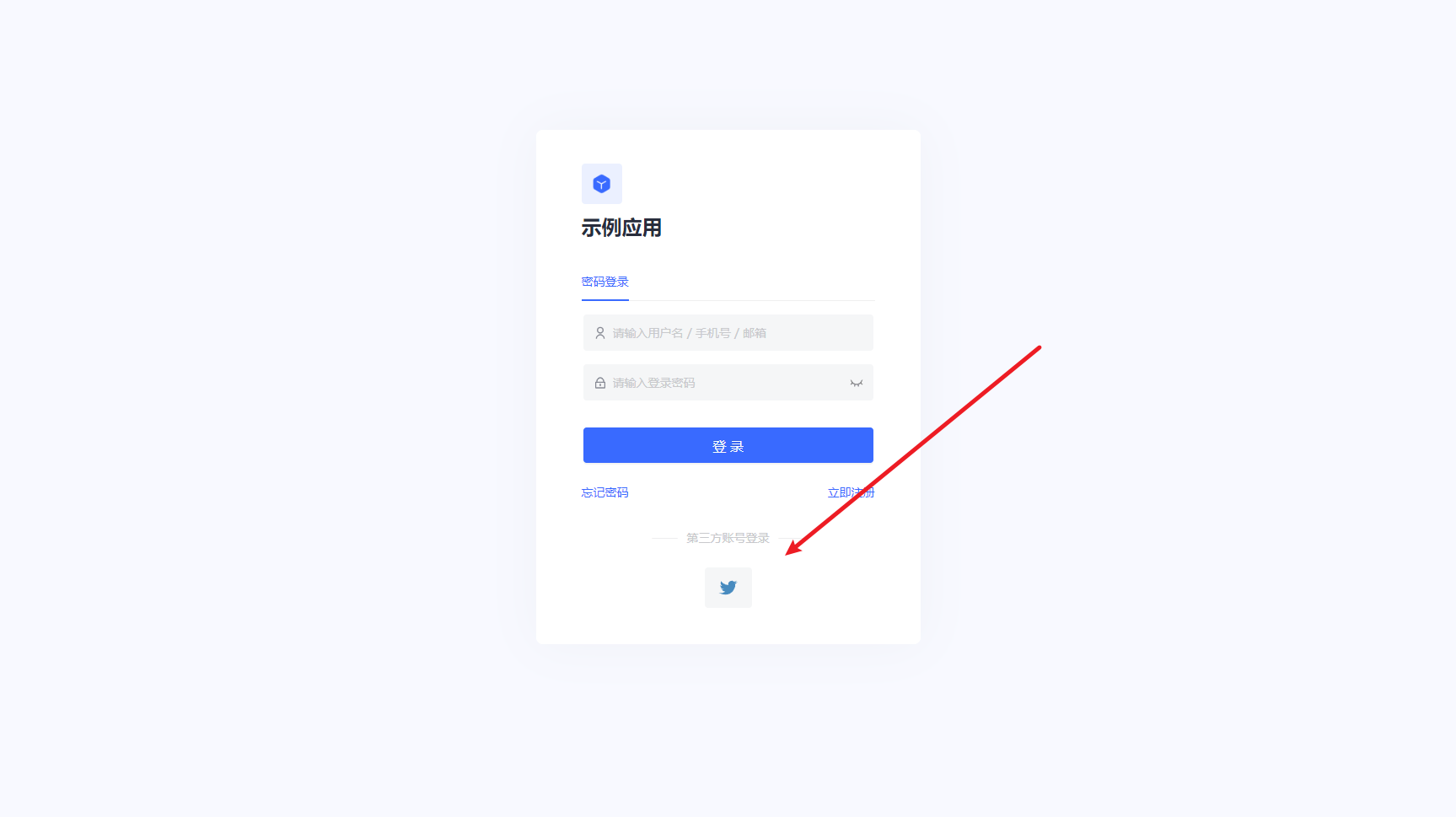
- Terminal user preview image:
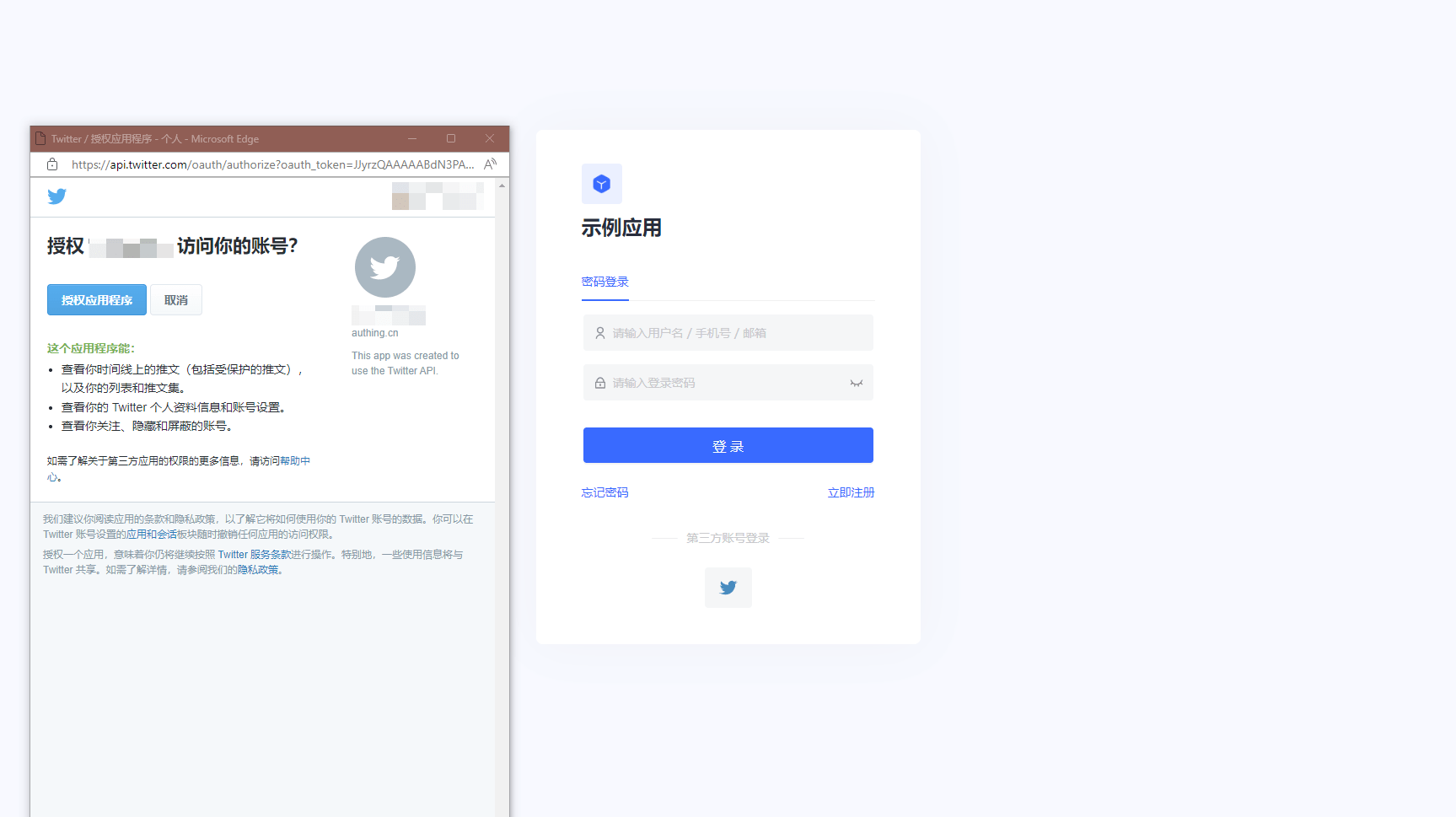
Notes
- If you don't have a Twitter account yet, please go to the Twitter platform to register an account.
- Go to the Twitter developer platform to complete the account information, and apply for Elevated access permissions for the account.
- If you have not opened a GenAuth console account, please go to GenAuth Console to register a developer account;
Step 1: Create a Twitter application
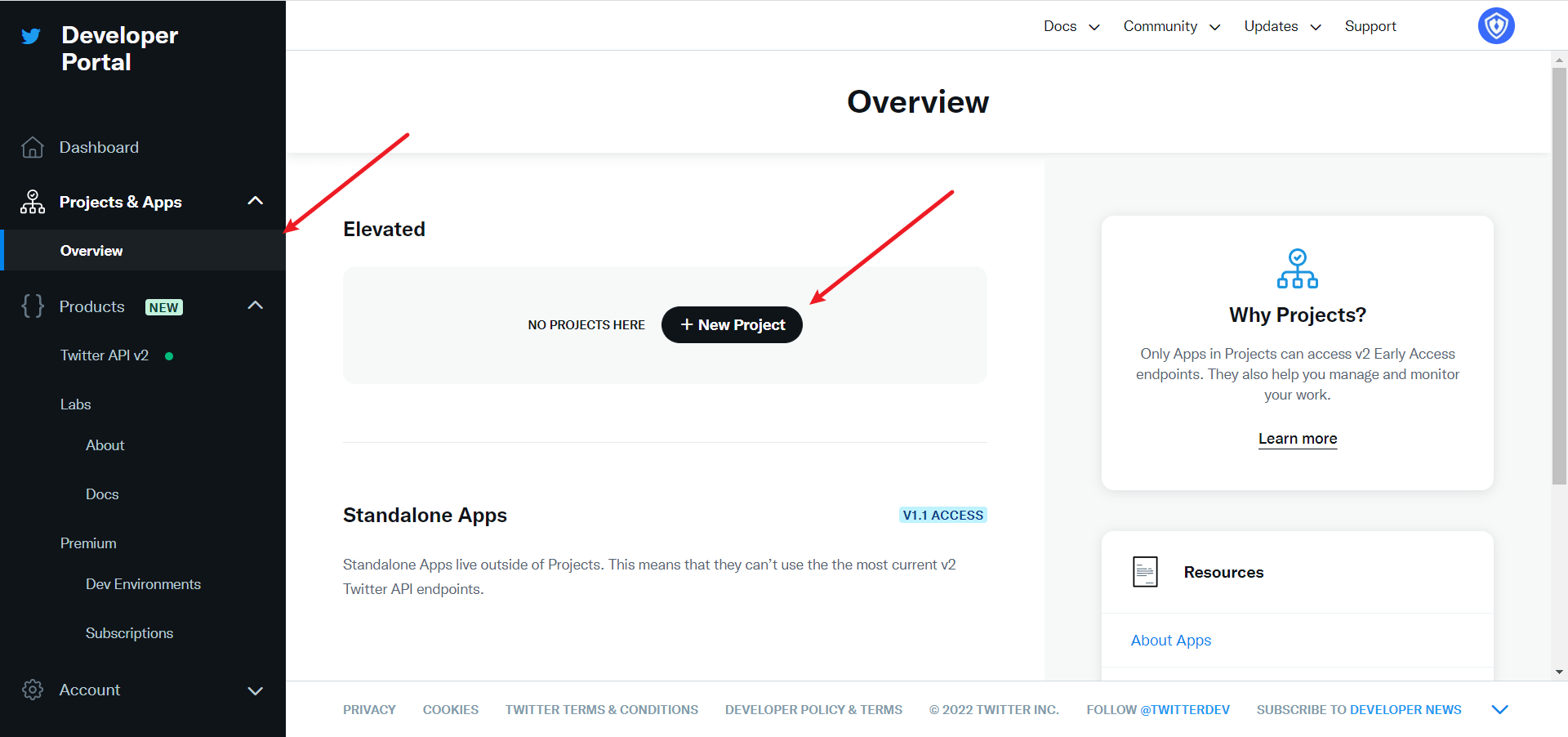
1.1 Create a project. In the sidebar Projects & Apps, select Overview, and in the Elevated directory, click +New Project.
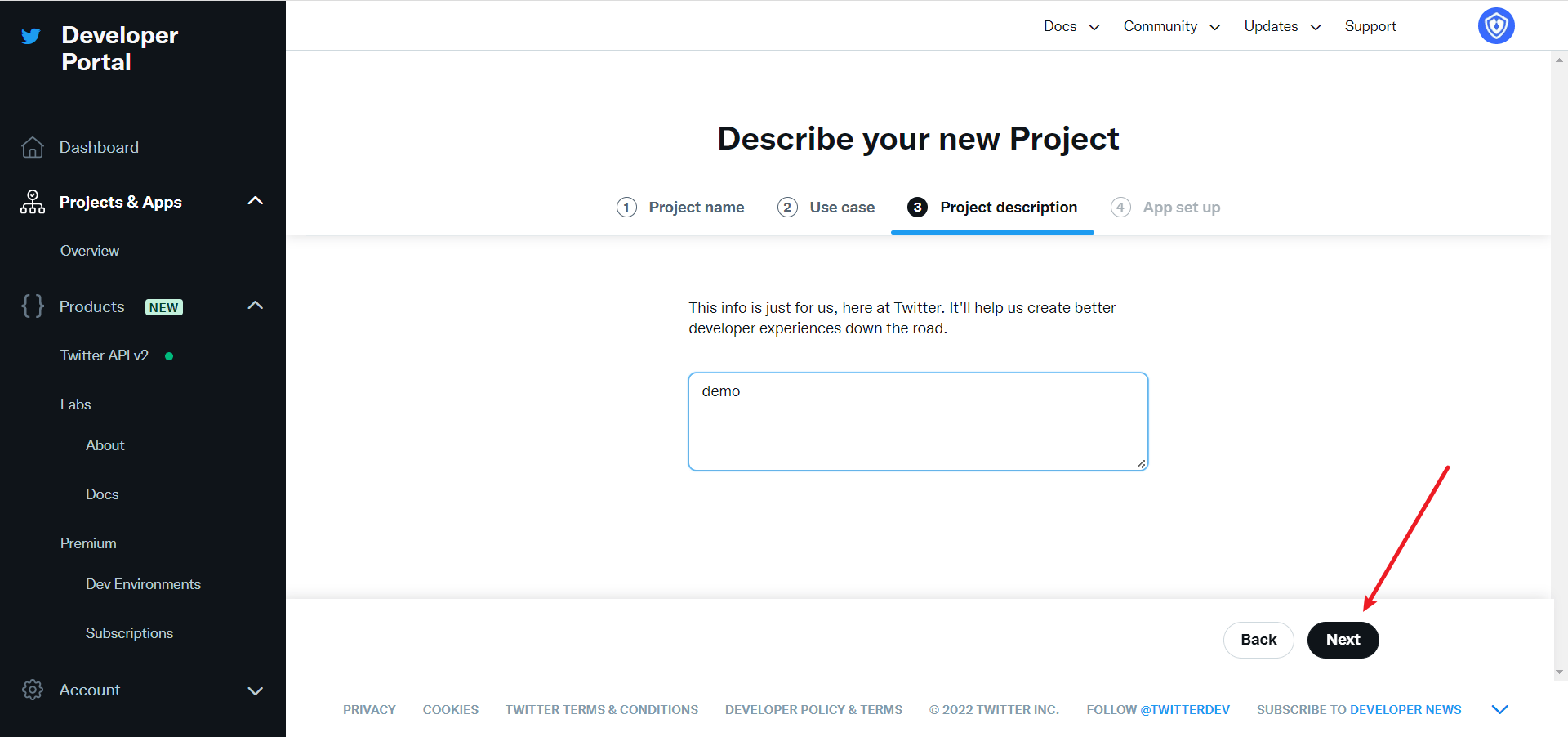
Fill in Project Name, Usage Scenario, Project Description in turn, and start creating the application.
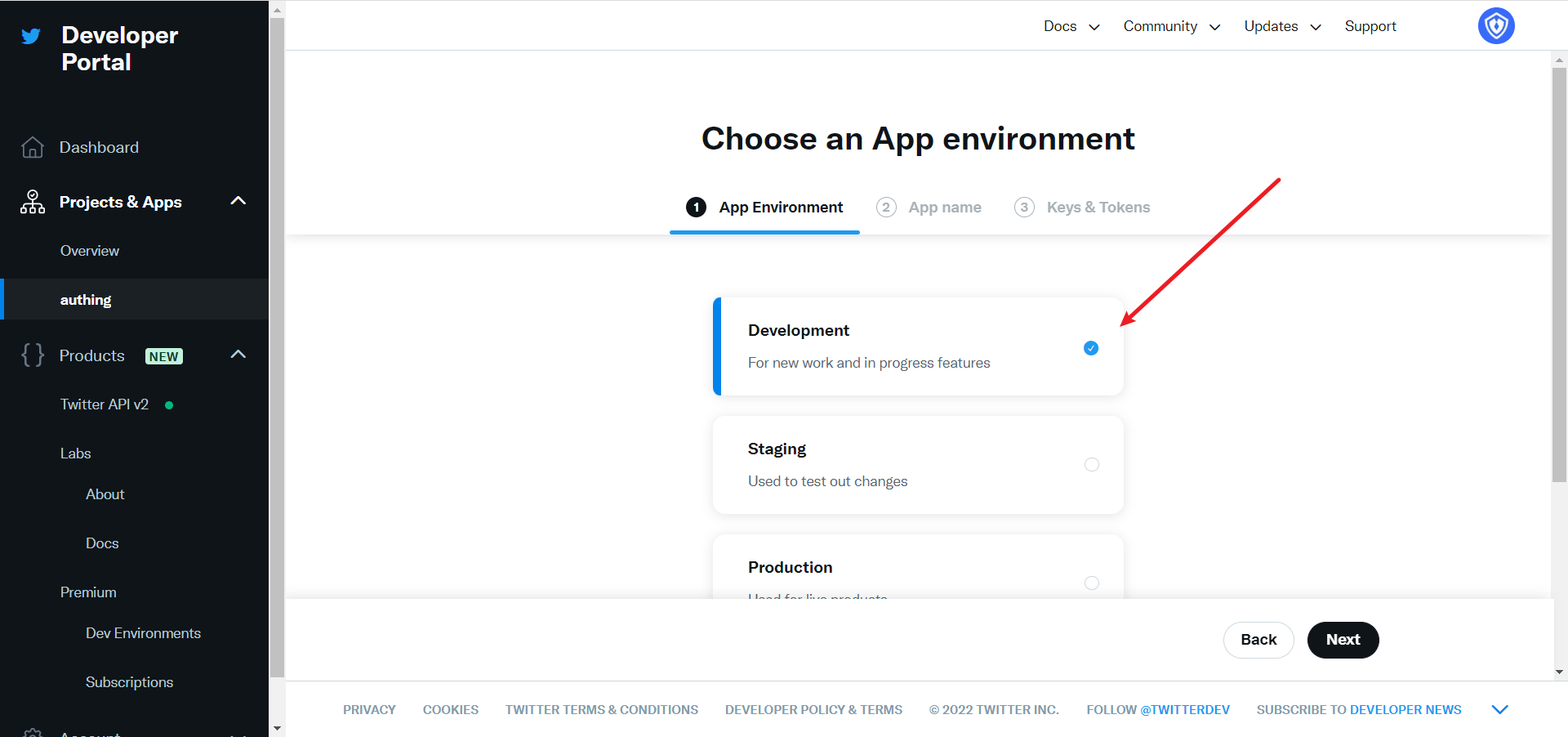
During the development phase, select Development for the application environment, and switch to Production after debugging is complete
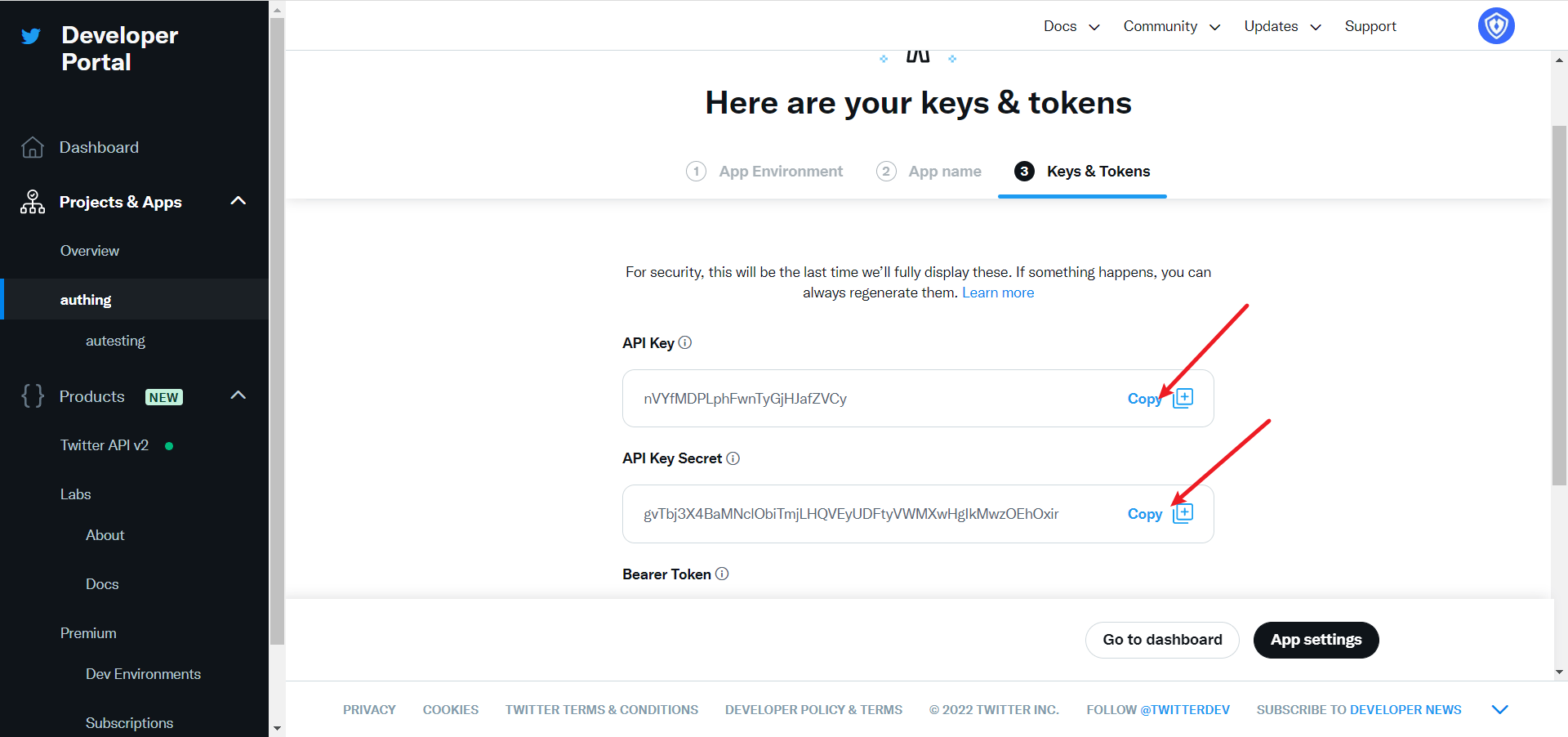
After filling in the name, you will see APP Key and APP Key Secret. Record them first, and they will be used when configuring the GenAuth console
Step 2: Configure Twitter in the GenAuth console
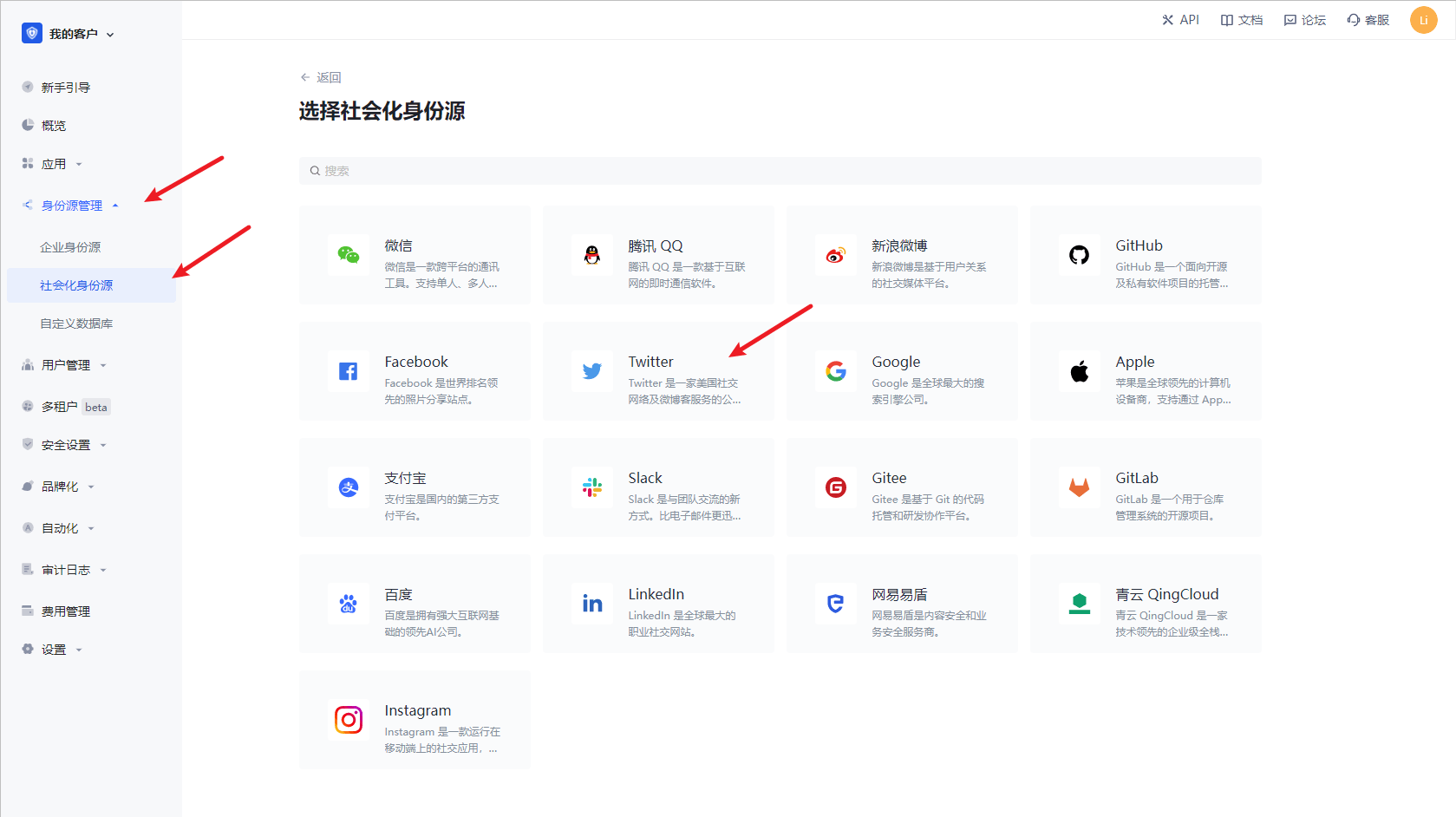
2.1 On the GenAuth Console console, on the "Social Identity Source" page, click the "Create Social Identity Source" button, enter the "Select Social Identity Source" page, select the "Twitter" identity source button, and enter the "Twitter Login Mode" page.
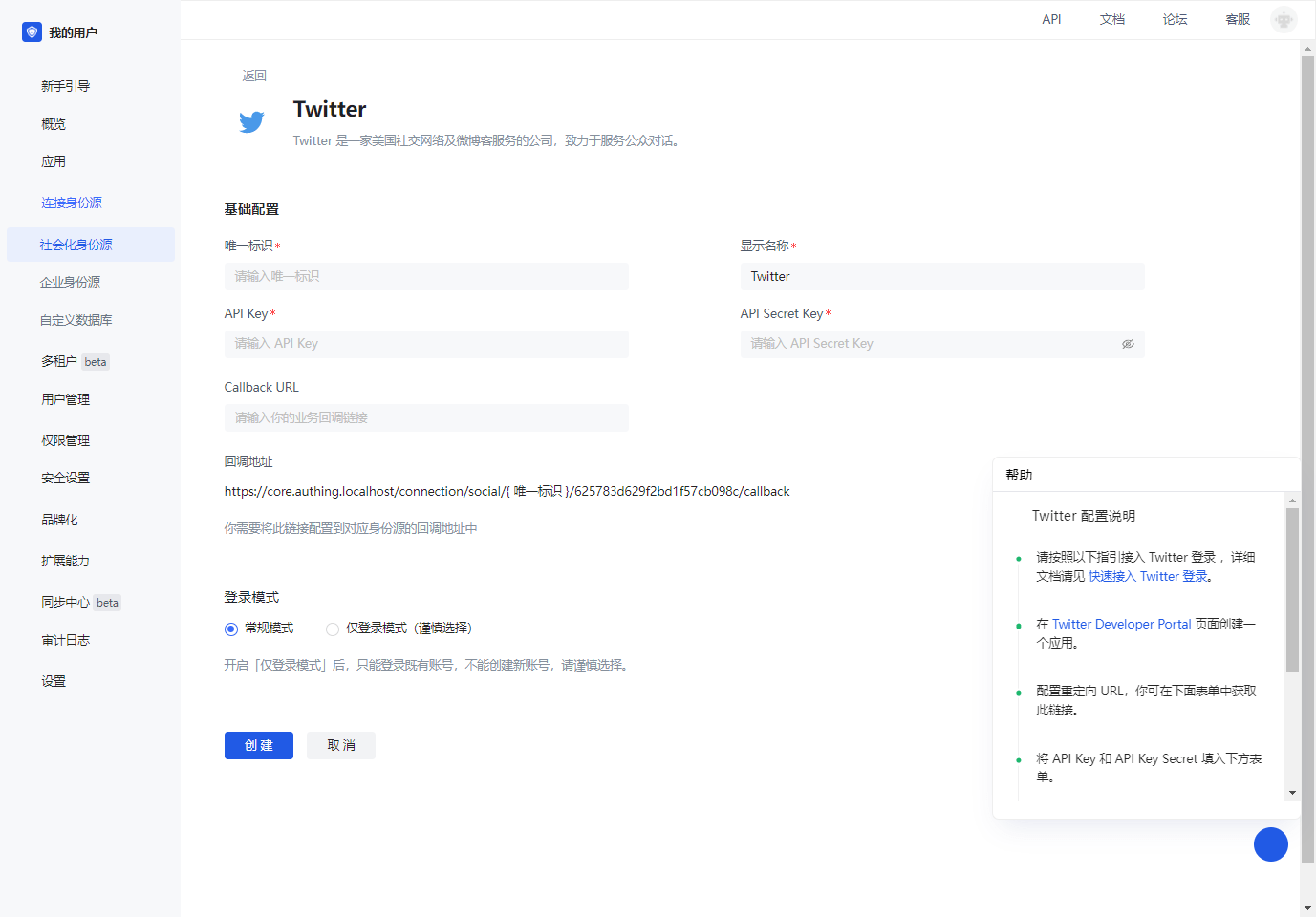
2.3 Please configure the relevant field information on the "Social Identity Source" - "Twitter" page of the GenAuth Console console.
| Field/Function | Description |
|---|---|
| Unique ID | a. The unique ID consists of lowercase letters, numbers, and -, and is less than 32 bits in length. b. This is the unique ID of this connection and cannot be modified after setting. |
| Display Name | This name will be displayed on the button of the end user's login interface. |
| API Key | Application ID, which needs to be obtained on the Twitter platform |
| API Secret Key | Application secret key, which needs to be obtained on the Twitter platform |
| Callback URL | This is your business callback domain name, which is not the same as the callback link configured for the self-built application, and is also unrelated to the callback address configuration of the third-party social login console. For example, if your website domain is https://example.com and the url for handling GenAuth callback request is /auth/callback, then you should fill it in https://example.com/auth/callback. This parameter is no longer recommended. It is recommended to configure the callback link separately in the application. You can fill in # for the address here. |
| Callback address | Twitter redirect URI. This URL needs to be configured to the callback address of the application created by the Twitter platform. |
| Login mode | After turning on "Login-only mode", you can only log in to existing accounts and cannot create new accounts. Please choose carefully. |
After the configuration is completed, click the "Create" or "Save" button to complete the creation.
In the project created on Twitter, select the application you just created, scroll down, and under the User authentication settings column, click the Set Up button to enter the authentication settings page 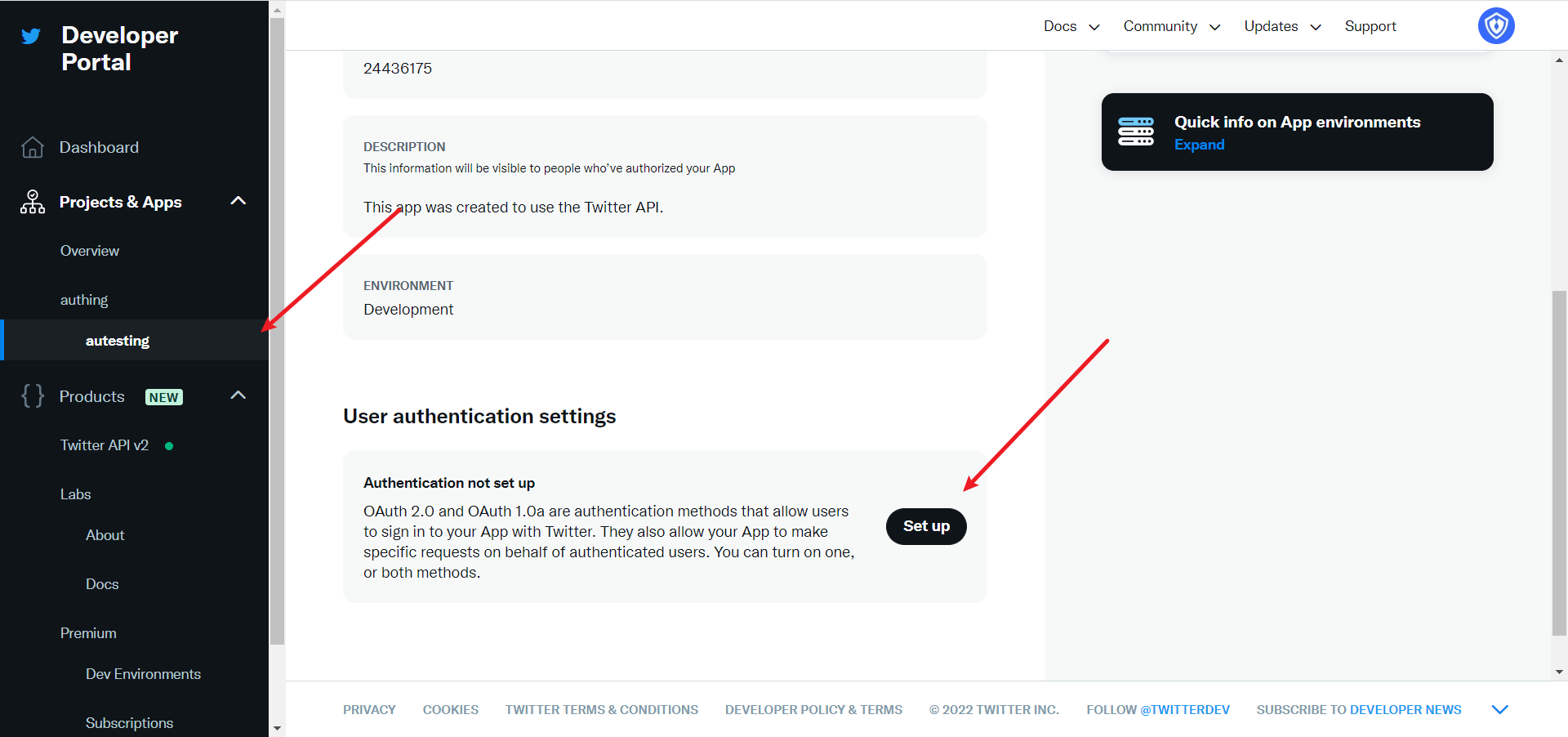
Enable OAuth 1.0a 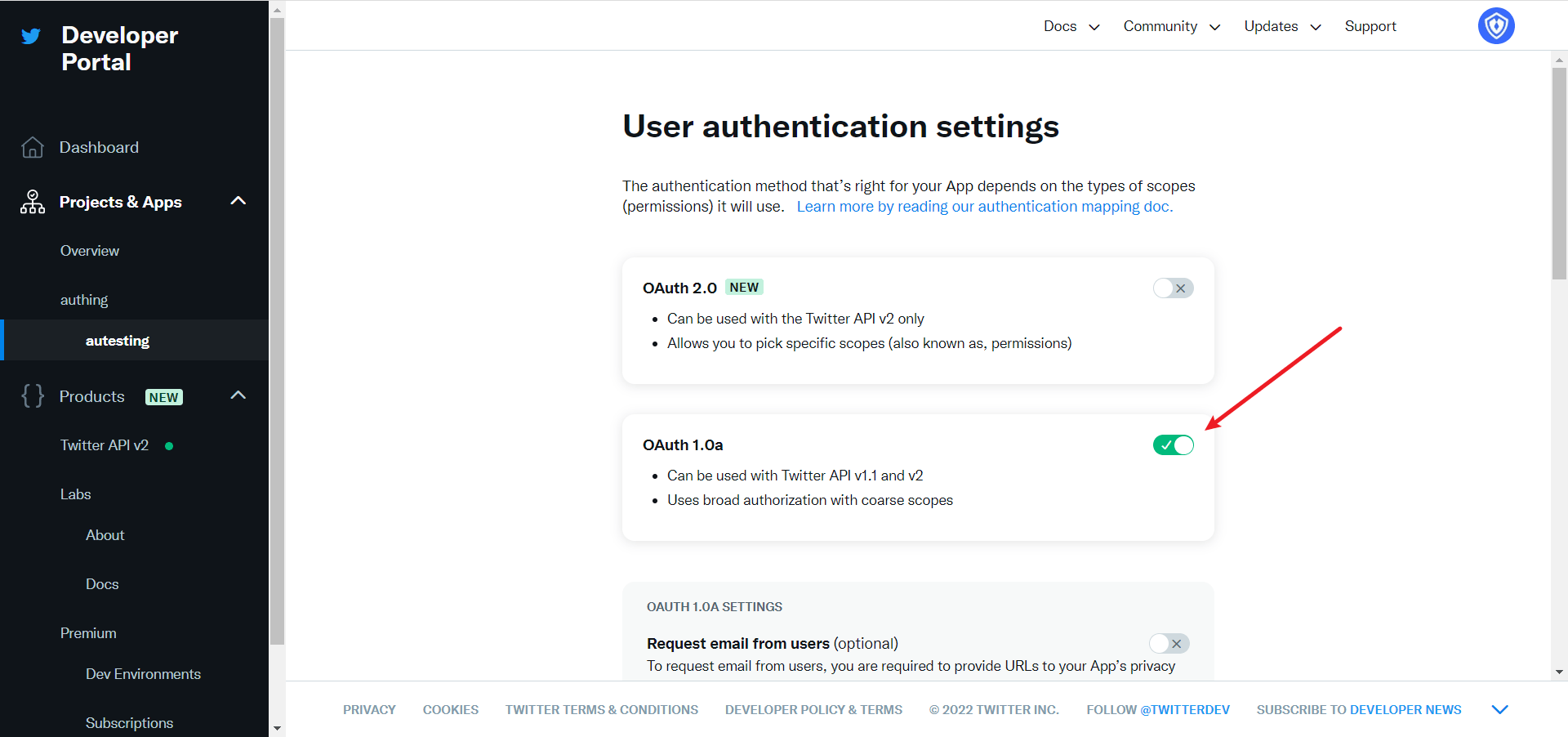
Select the permissions of the App as needed. The default selection of Read can meet the authentication function. Callback URI / Redirect URL fills in the callback address displayed after creating the Twitter identity source on the GenAuth console. 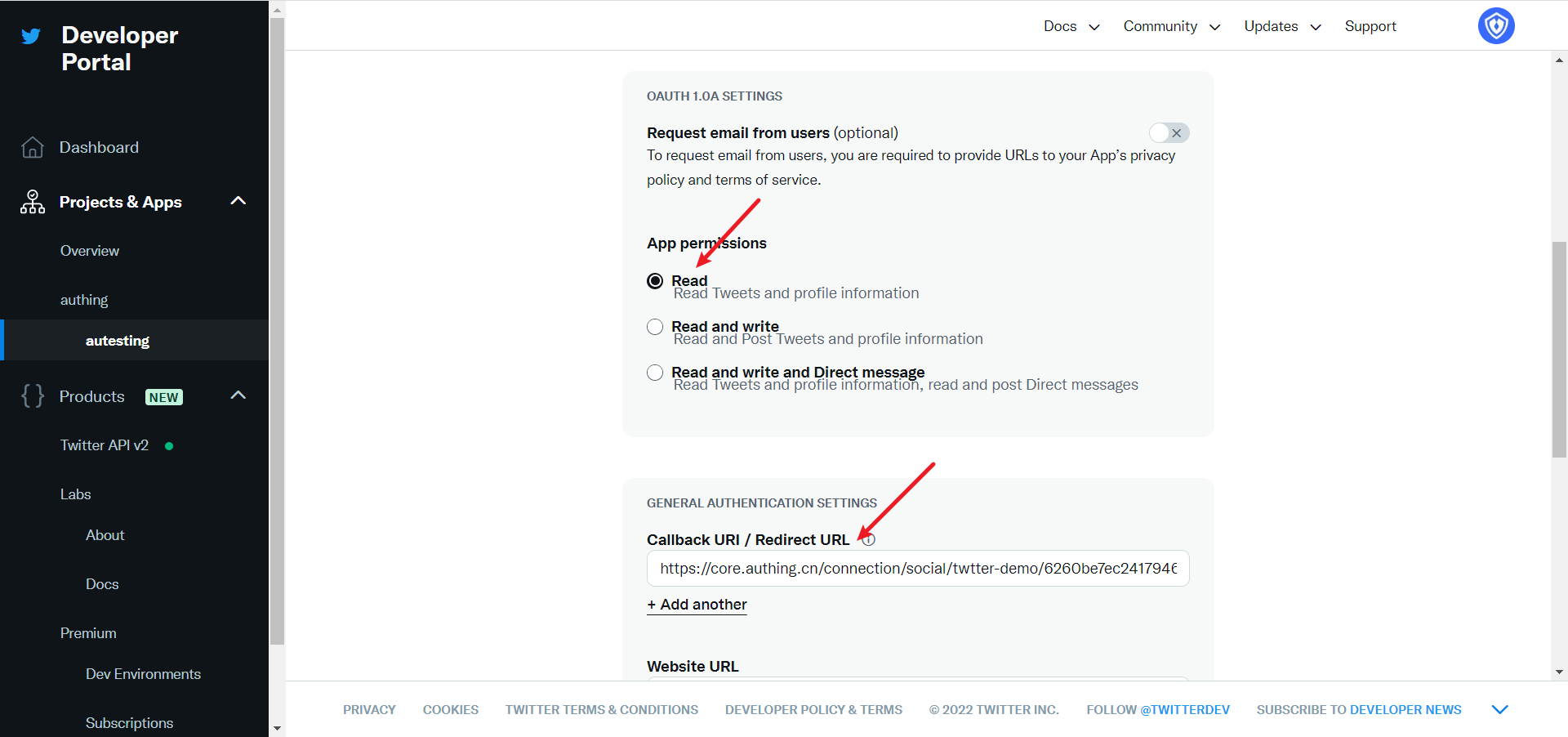
Website URL fills in your site homepage, then click Save 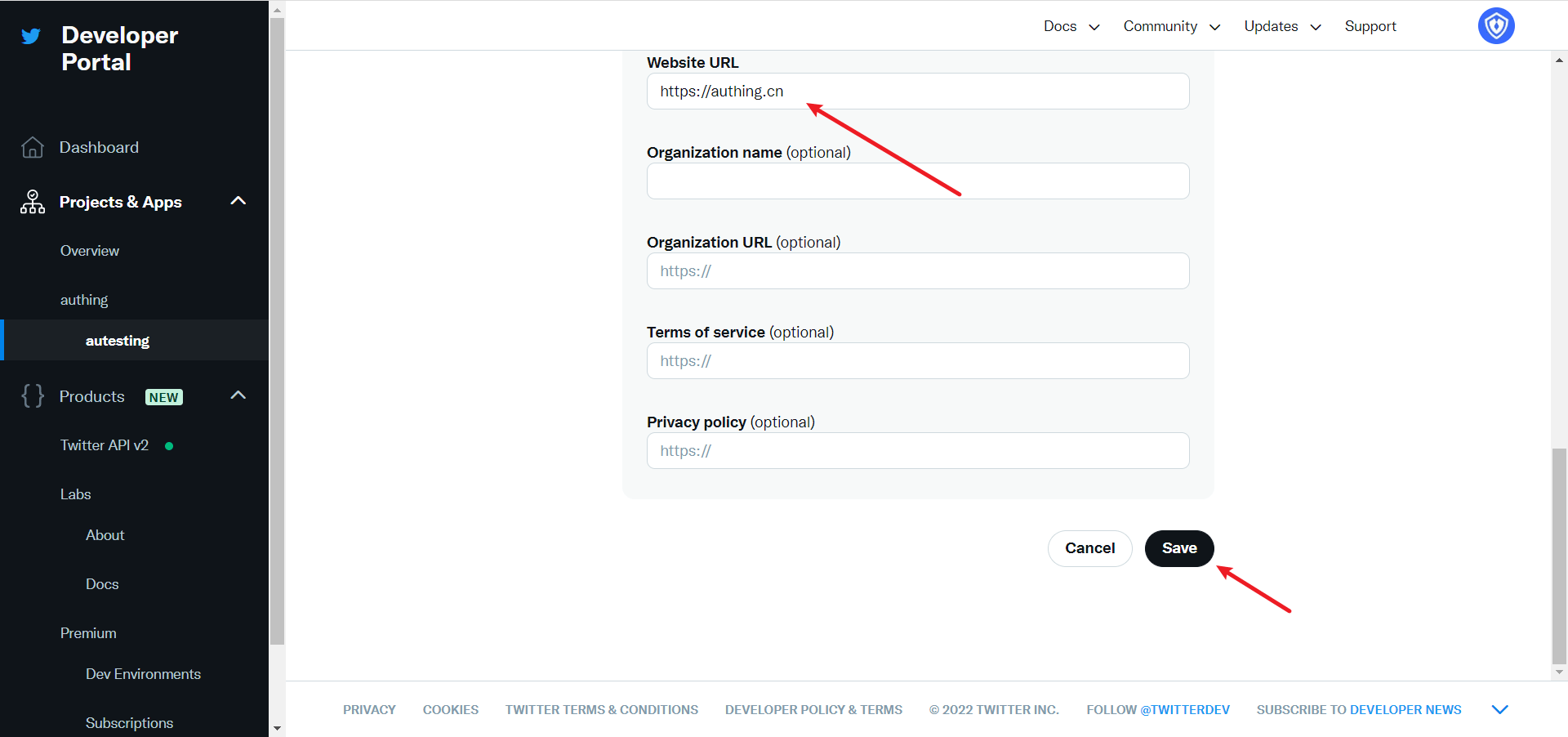
If you forget the application key, you can click Keys and tokens on the application page and select Regenerate to regenerate. 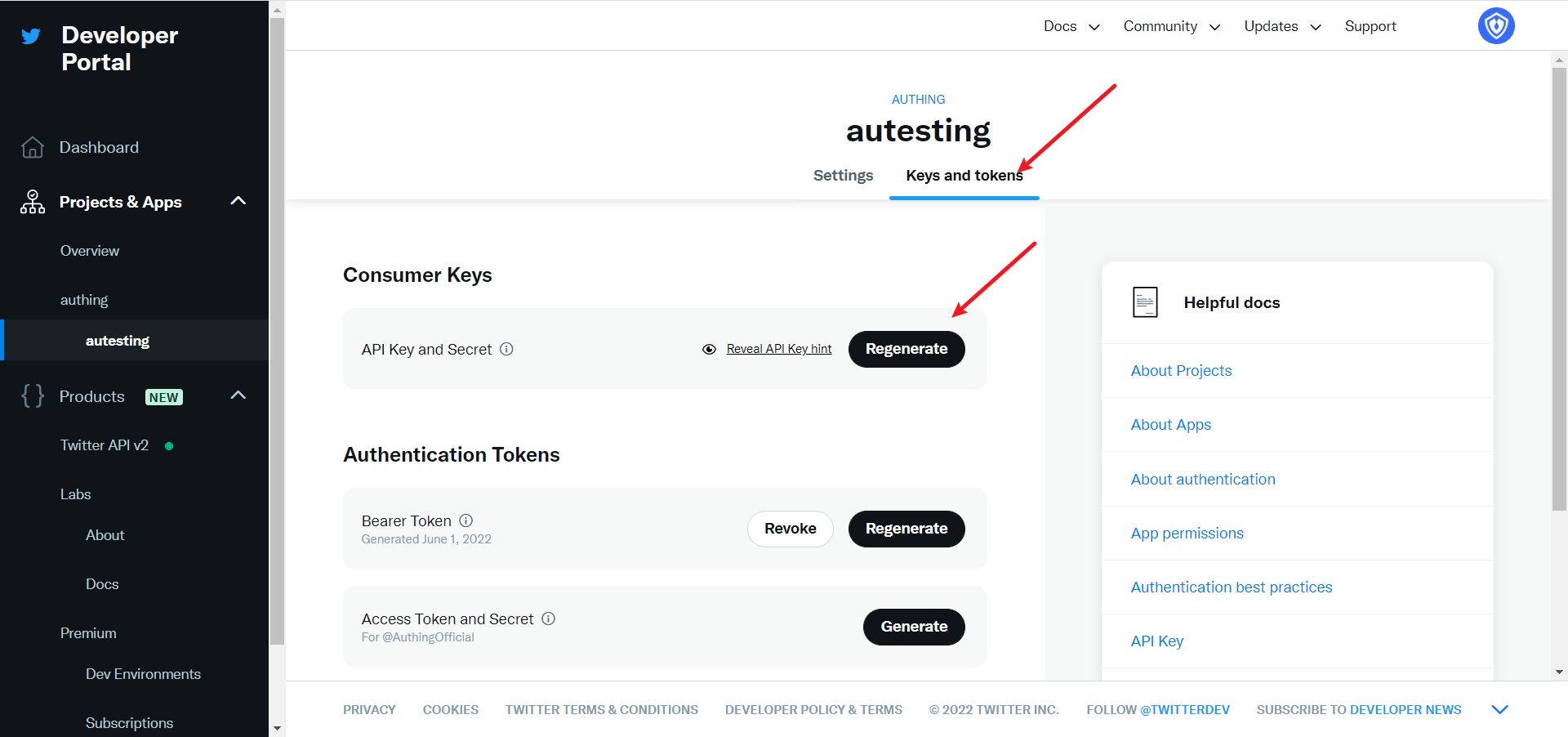
After completing the configuration, return to the application settings page, click Edit, and switch the application environment to Production. 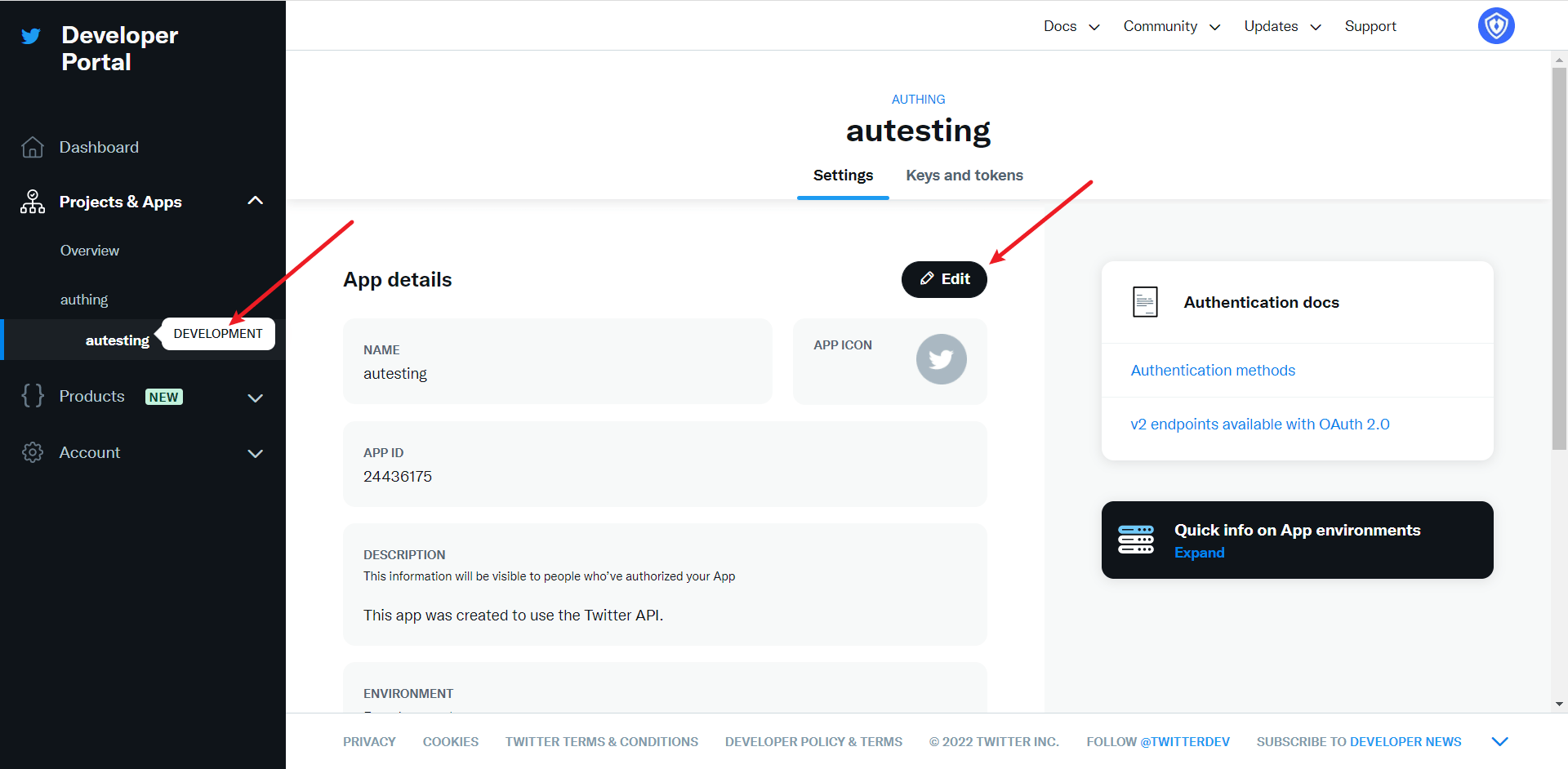
Step 3: Development access
Recommended development access method: Use a hosted login page
Pros and cons description: Simple operation and maintenance, which is handled by GenAuth. Each user pool has an independent secondary domain name; if you need to embed it into your application, you need to log in using the pop-up mode, that is: after clicking the login button, a window will pop up with the content of the login page hosted by GenAuth, or redirect the browser to the login page hosted by GenAuth.
Detailed access method:
3.1 Create an application in the GenAuth console. For details, see: How to create an application in GenAuth
3.2 On the created Twitter identity source connection details page, open and associate an application created in the GenAuth console
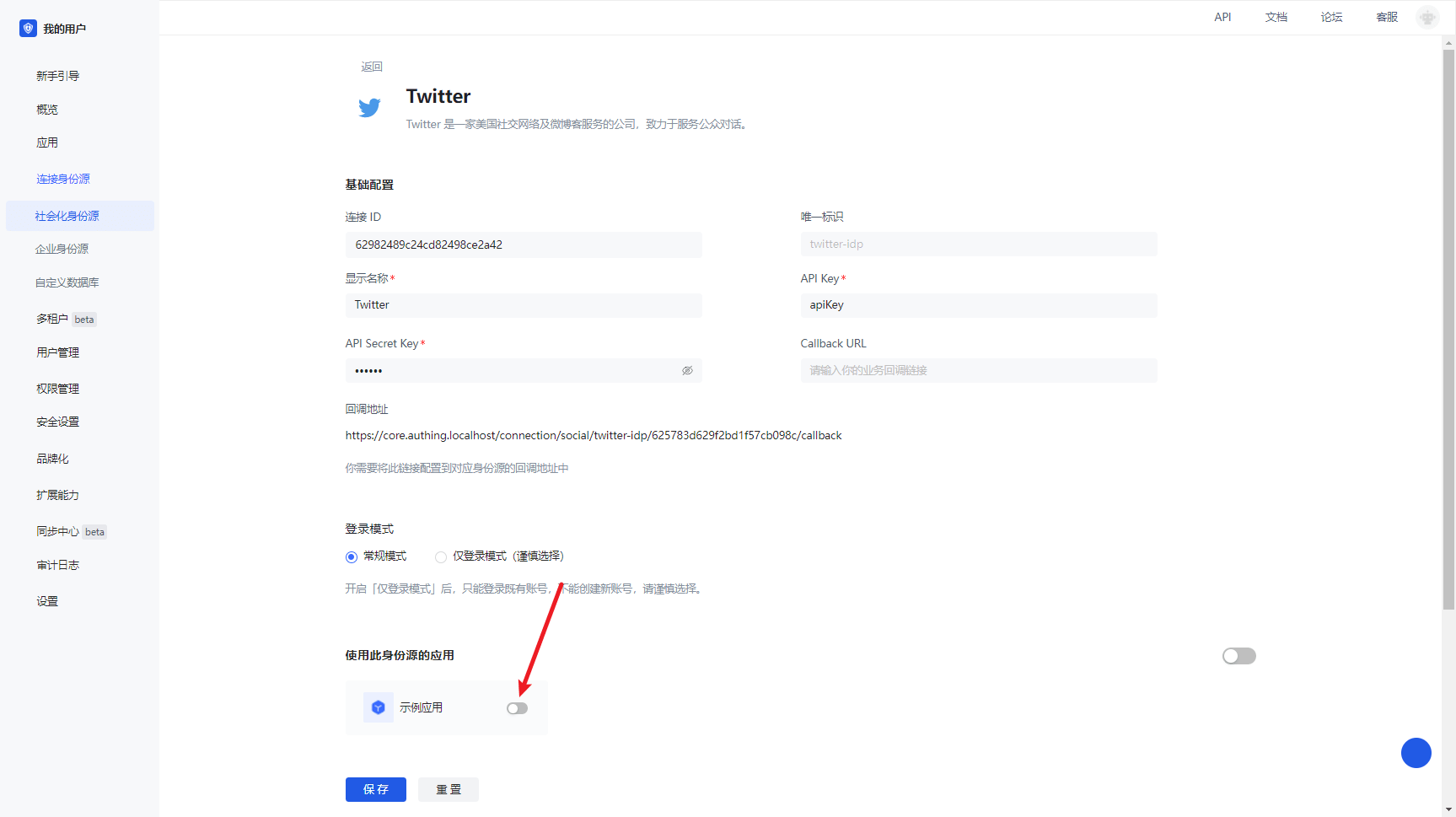
3.3 Experience Twitter third-party login on the login page