User Group Management
Path: User Management->User Group Management
Perform operations such as adding, deleting, modifying, and querying a group of users, and assigning authorizations.
Create a group
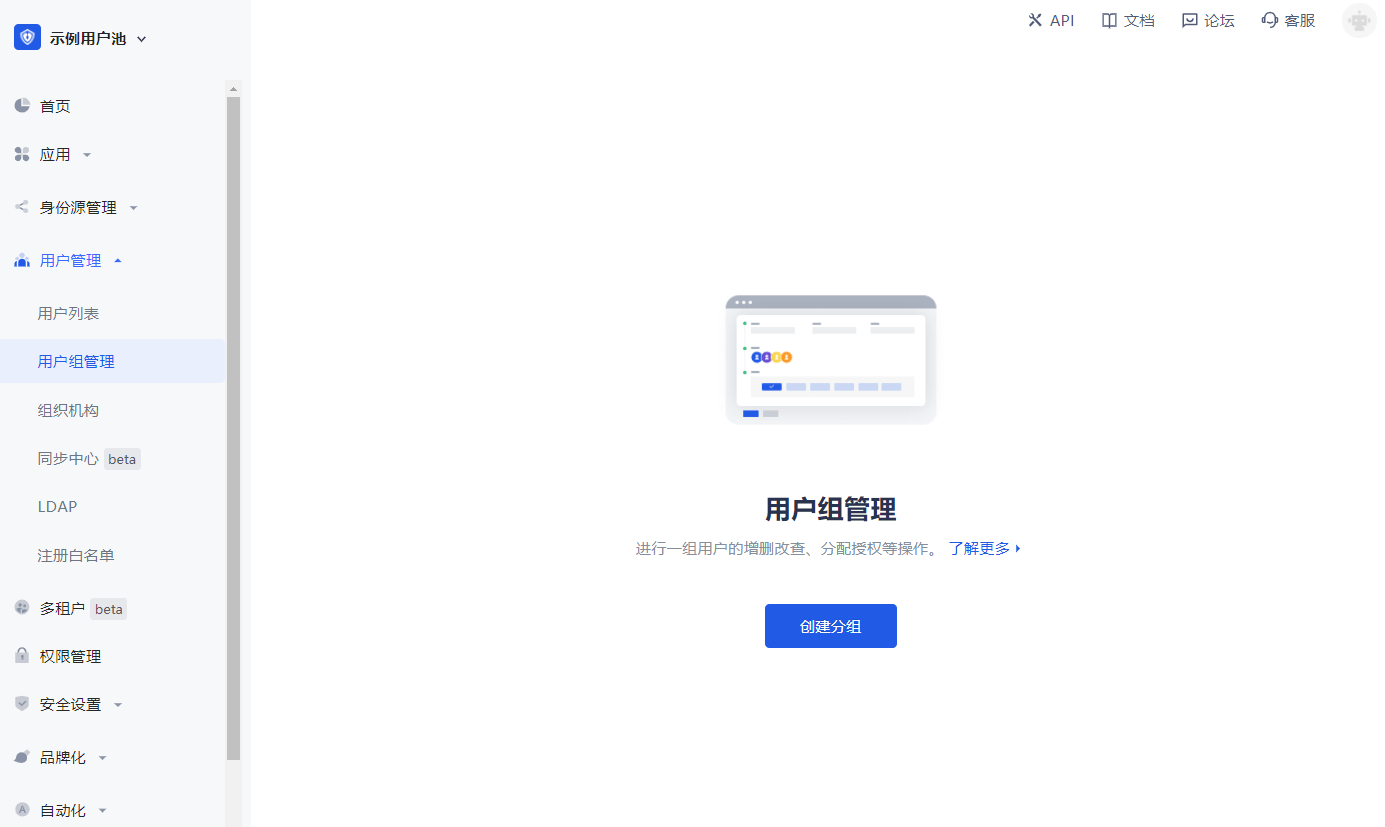
Find User Management in the navigation bar and click the corresponding menu to enter the user group page
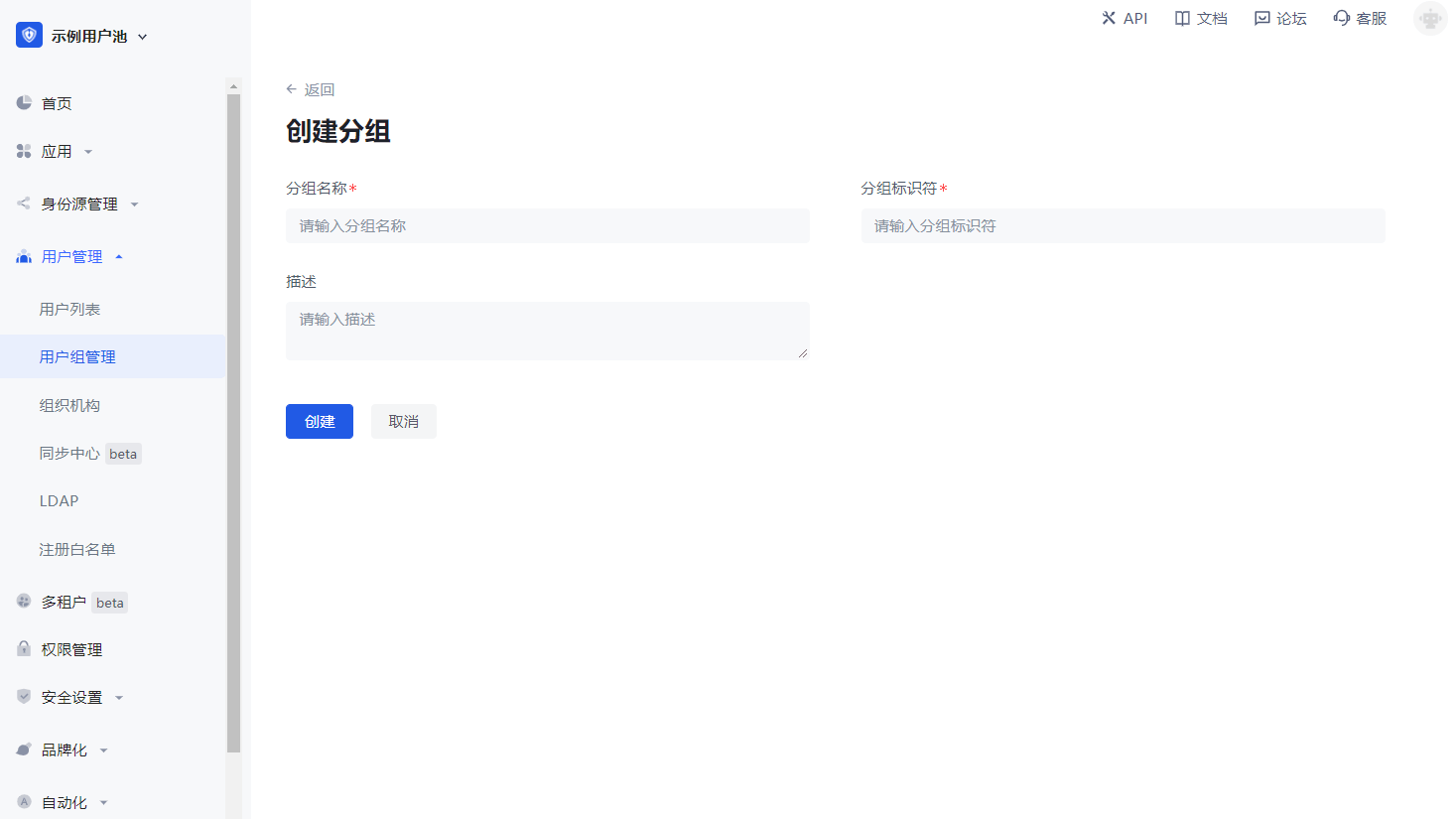
Fill in group information
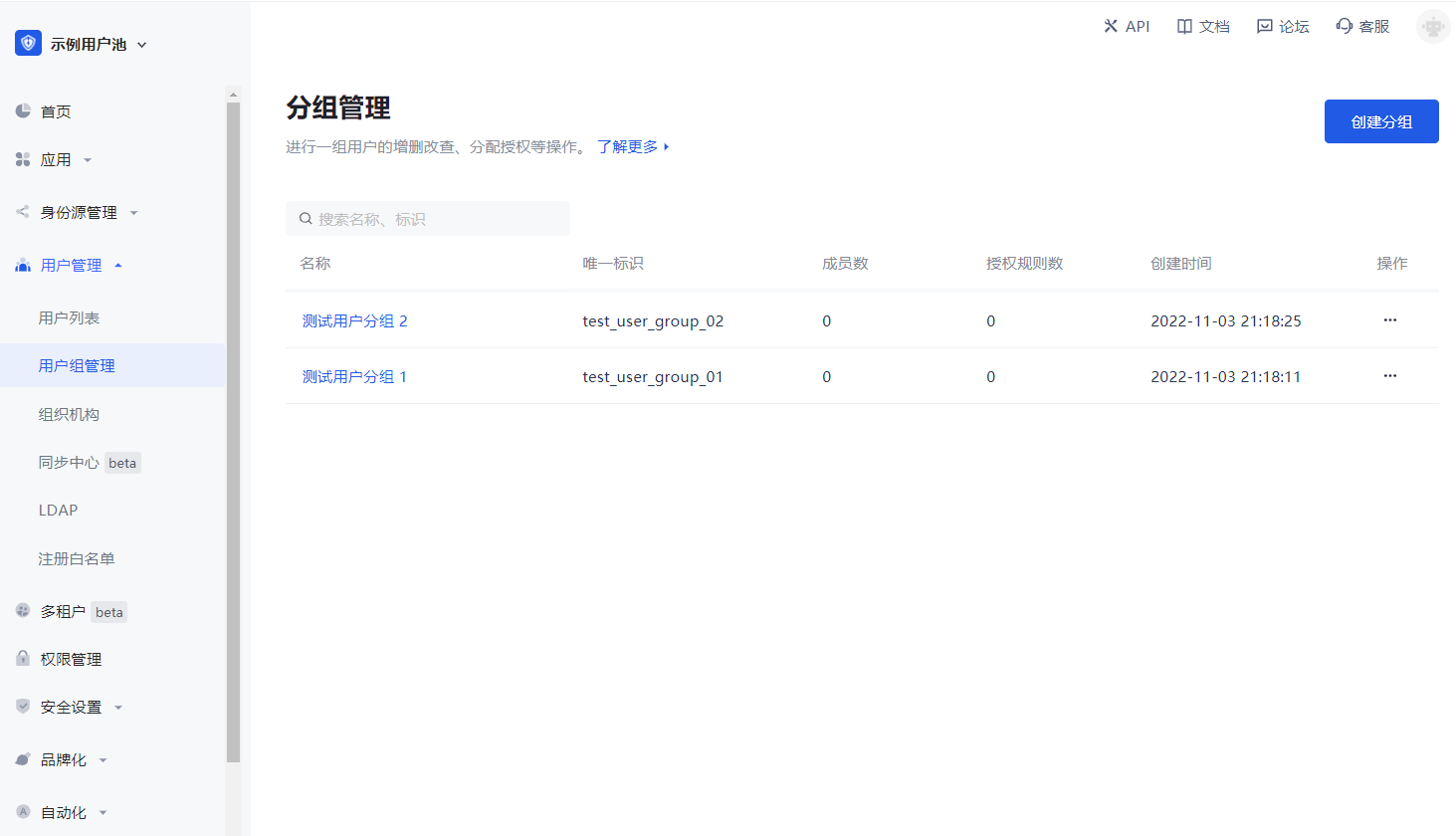
Group list
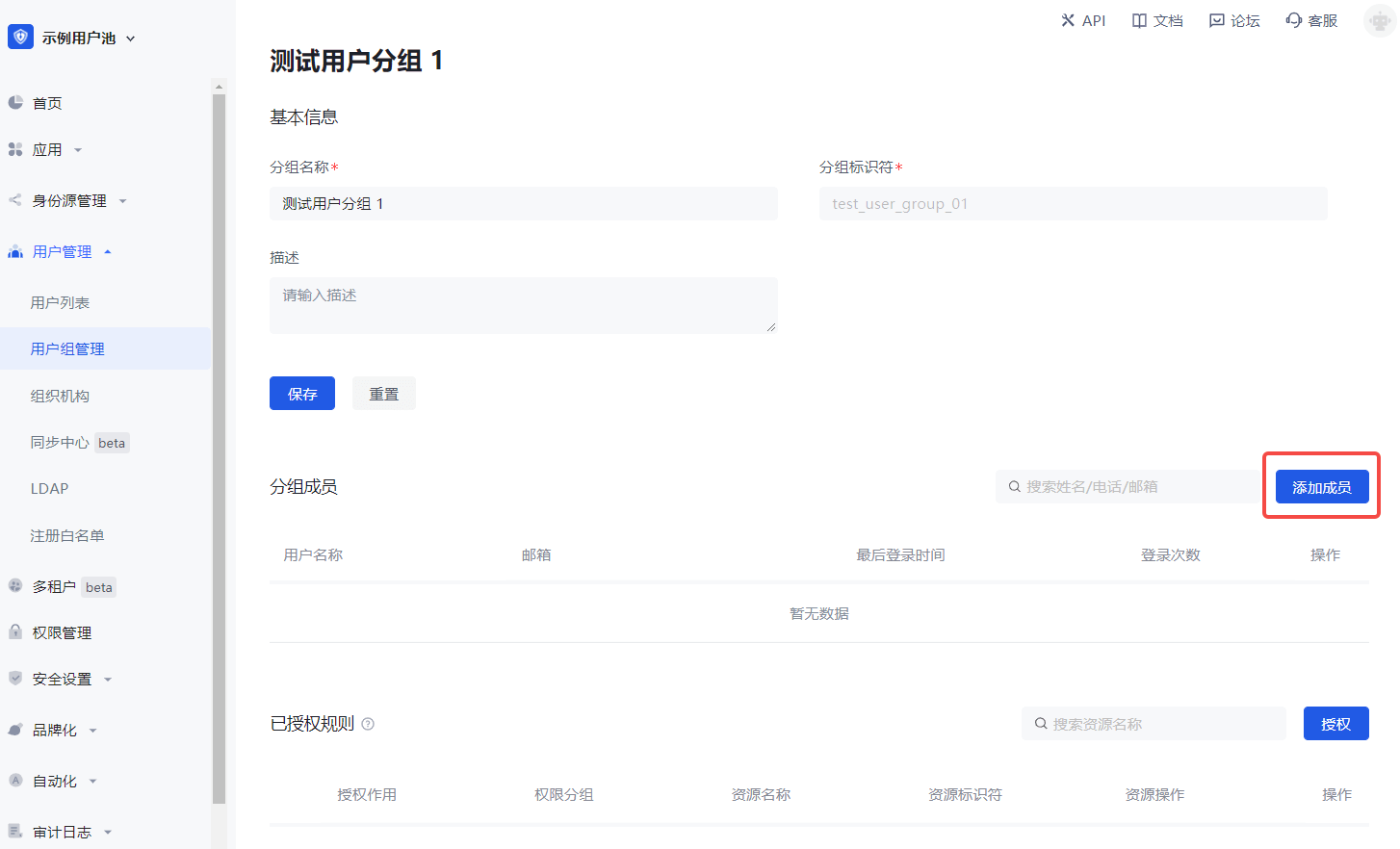
Group details
- Click Add Member.
- Select a member from the pop-up component or search for a member.
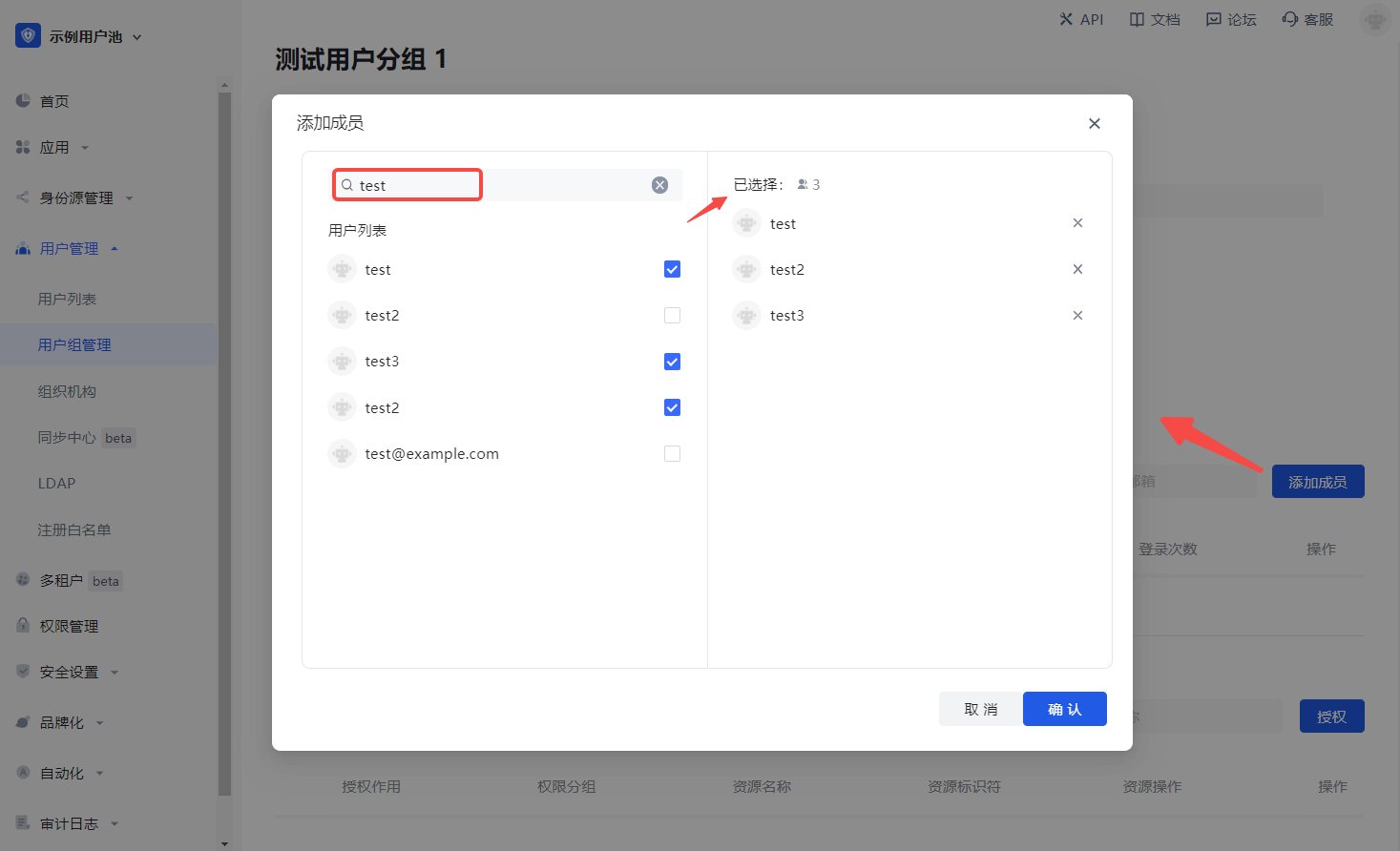
- Click Confirm to add successfully.
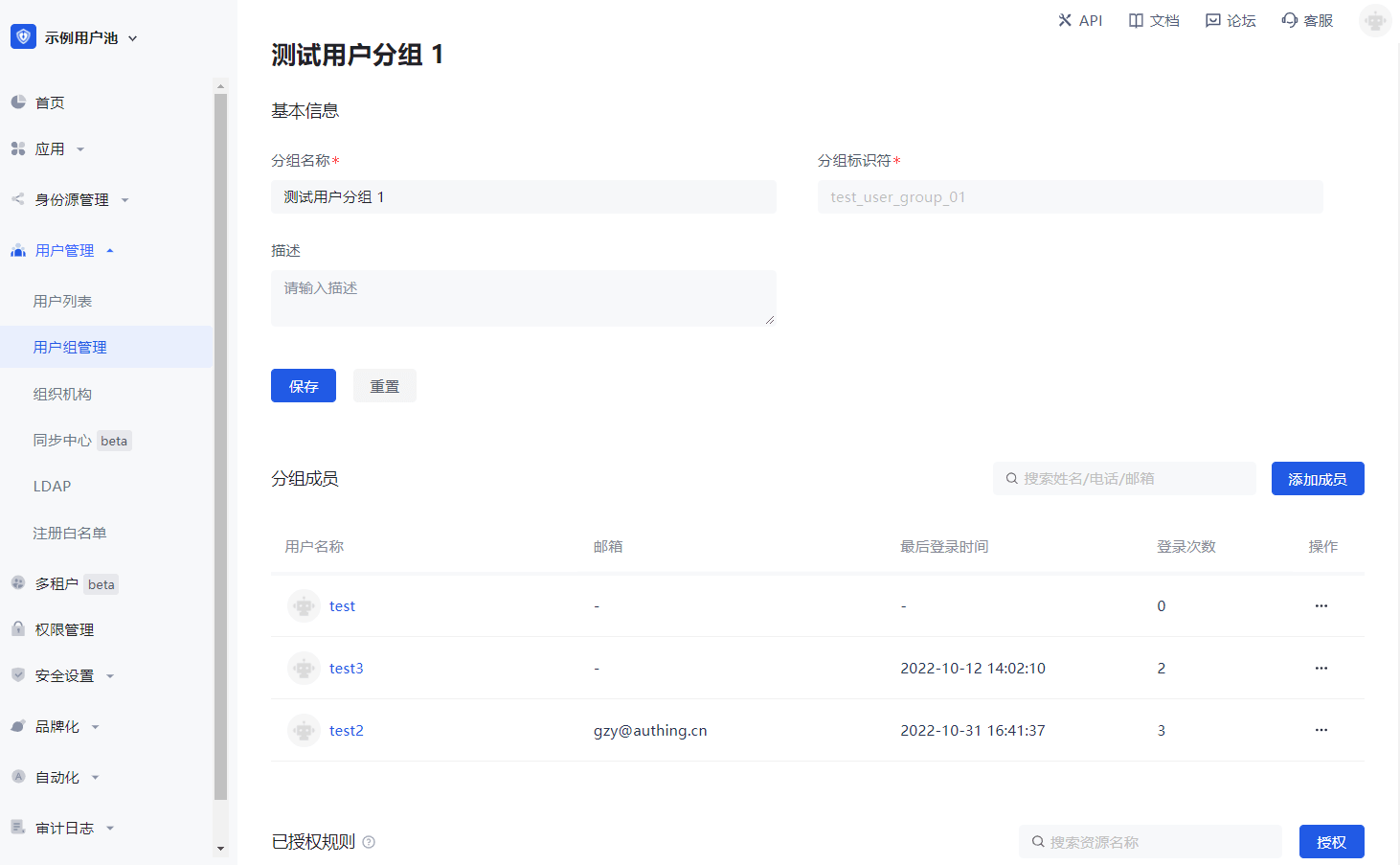
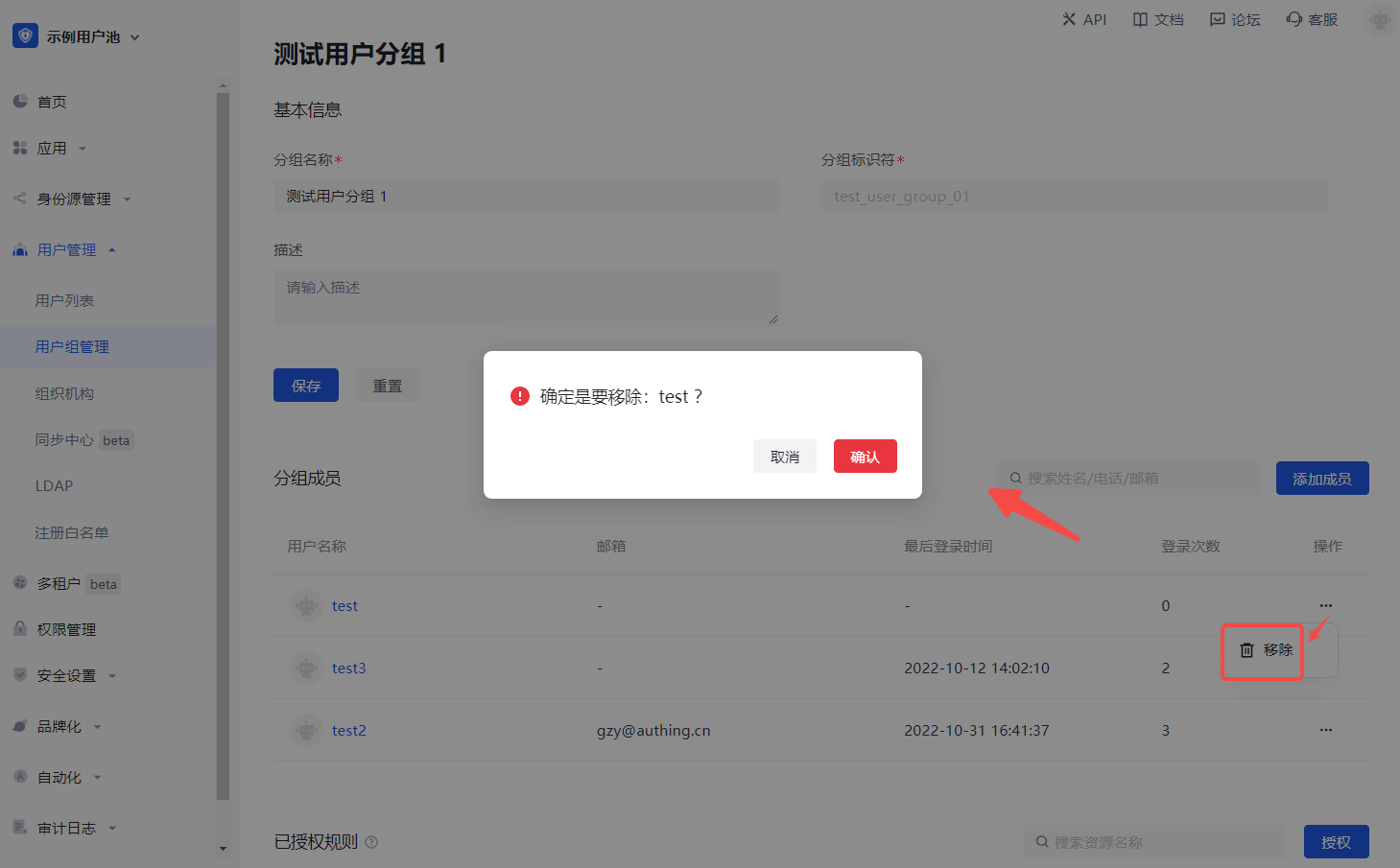
Assign permissions
To assign permissions to user groups, perform the following steps:
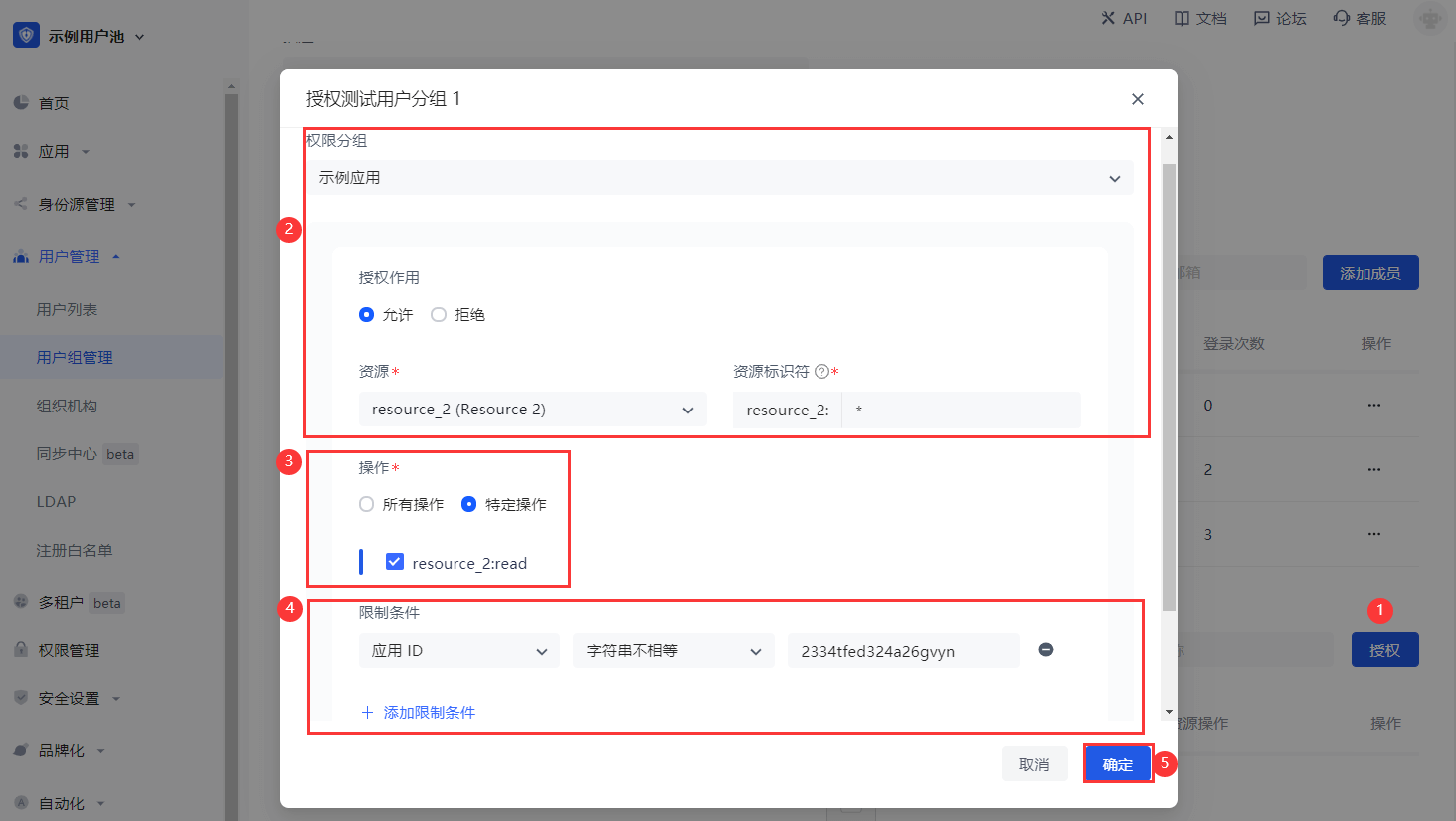
Click Add Authorization Rule.
Select Permission Group in the Authorization component, and specify Permission Role and Resource.
Specify the operation.
Add restrictions.
INFO
To add multiple authorization rules to the current user group (specify other Permission Group / Authorization Role / Resource / Operation / Restriction), click Add Authorization Rule below the pop-up window.
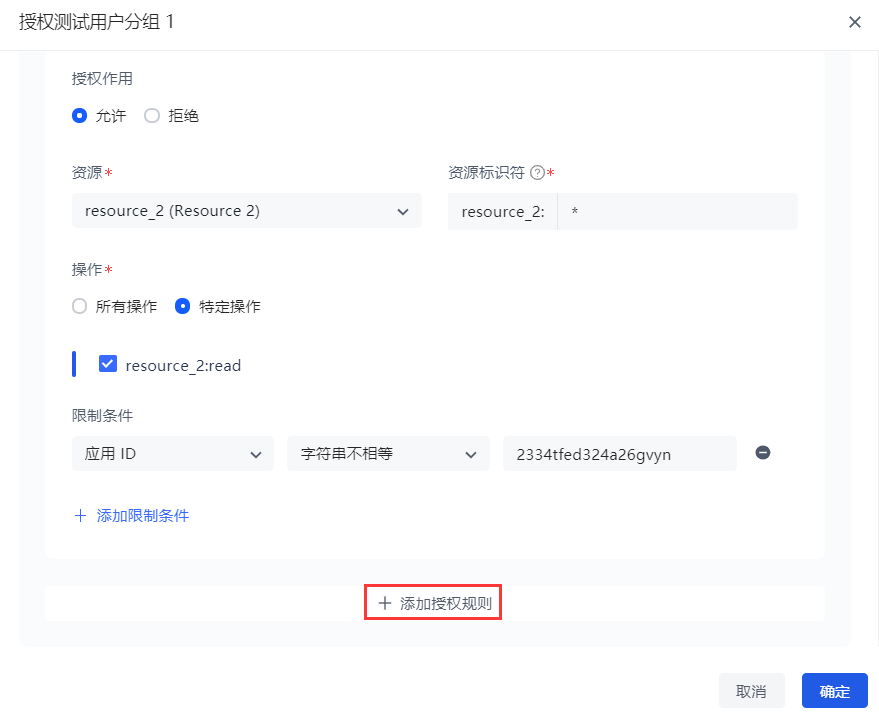
- Click OK. Authorization is successful.
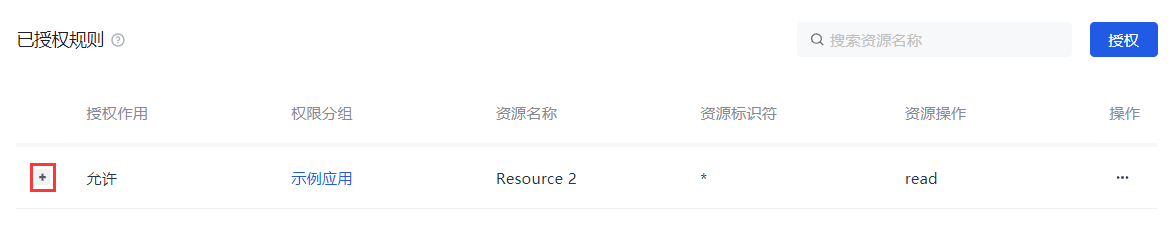
INFO
Click + to expand the current authorization rule and display the rule details.
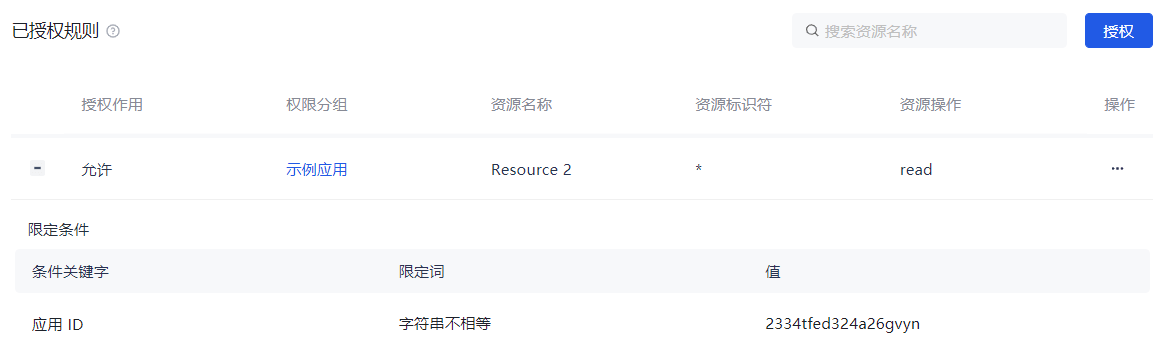
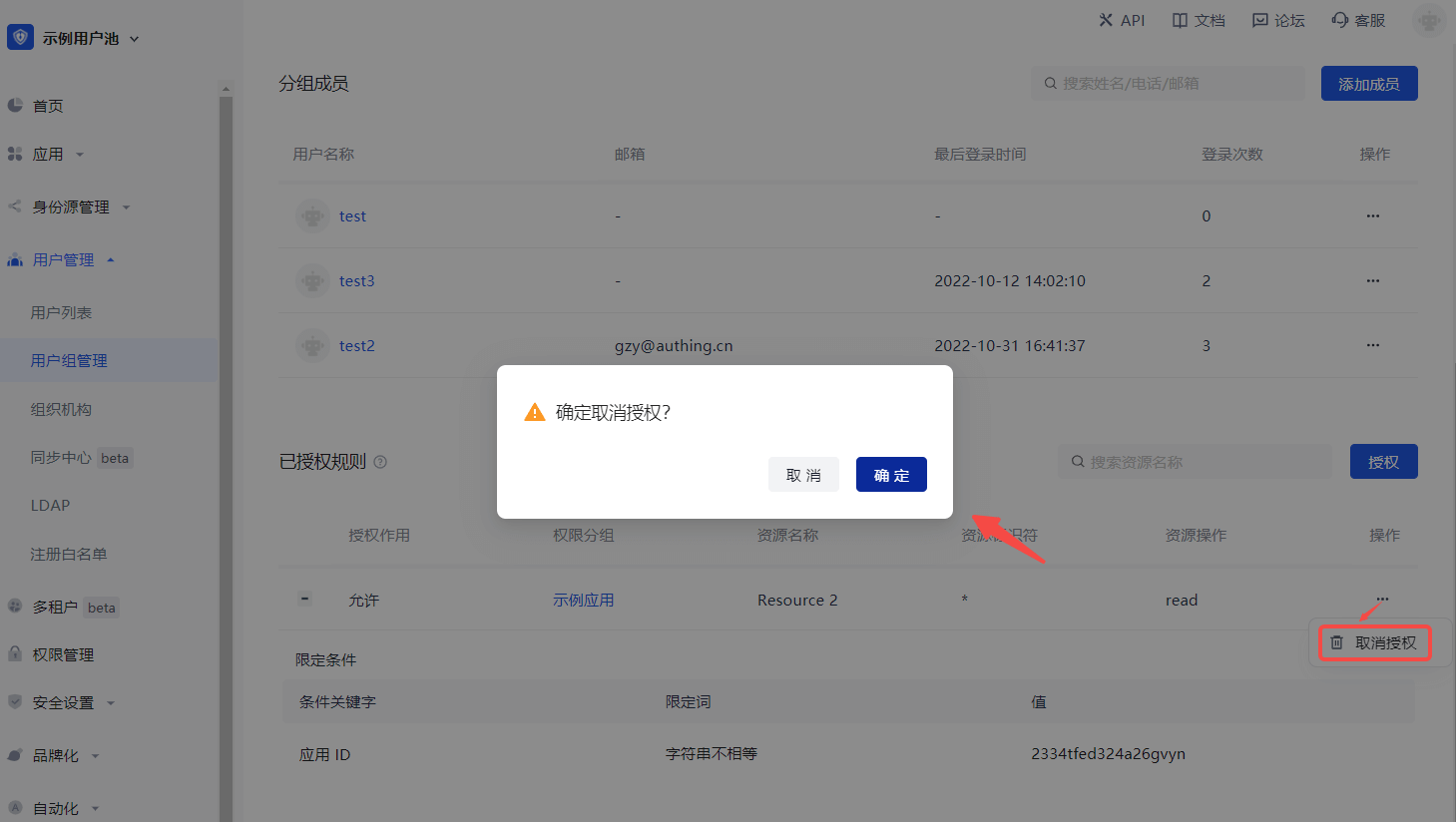
To cancel authorization, click the Cancel Authorization button in the Action column of the current authorization rule row: